
Default file & AutoPlay – PSL2
Powered SPI LED 2 controller excels in Standalone capabilities. Whenever you need to play colors, chases or videos! you can relly on the display of PSL2 and powerful UI to set the file that will play once the device is powered on. In addtion, you can navigate to change the content played from SD card manually or create a Playlist
Default file #
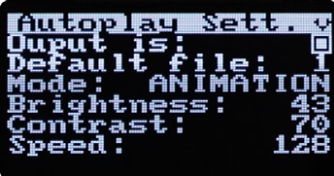
In case you need to play a specific file/animation that you have programmed in LED Strip Studio Software, you can set a so called Default file. This is an effect that will play after the device is powered on. Although this is a very simple use case, it is one of the most powerful features for specific cases. You set a timer in your outlet and play the animation you need. Super simple :)
Autoplay #
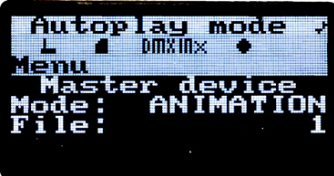
The device can work in several modes, which are independent of each other and have different priorites. Autoplay is the one with lowest priority – when there is no data comming in from LSS software, no ArtNet data, DMX or external trigger, the device automatically goes into Autoplay mode.
Once in, you can use the app or above mentioned buttons and device’s UI to play the effect you want. It will play the effect in loop until you change the animation. Alternatively, you can set the device to play the animation only once. This is especially useful when you program a loooong animation ( up to 24H in the software ) and you only want it to play once. In that case, you disable Repeat
Playlist #
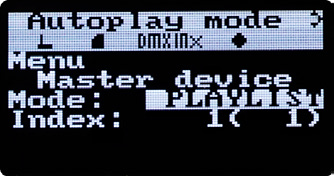
You can also create a Playlist from the files you choose. Files, or better animations, are programmed in LSS software and you can upload them directly onto an SD-card. This way you are not stuck with only single animation, but you can easily play multiple in a row.
Synchronization #
As with other devices and modes, ( e.g. DMX, Ethernet Synchronization ) you can have multiple devices daisy-chained together and set default file on all devices and play it simultaneously. One device serves as a synchronzation device

