 LSS 4
LSS 4Screen Grabber
The Screen Grabber video layer allows you to capture a portion of your Mac OS or Windows desktop and display it directly on your pixel LEDs. It is useful for displaying video content from third-party software such as Resolume, MadMapper, or any other video player.
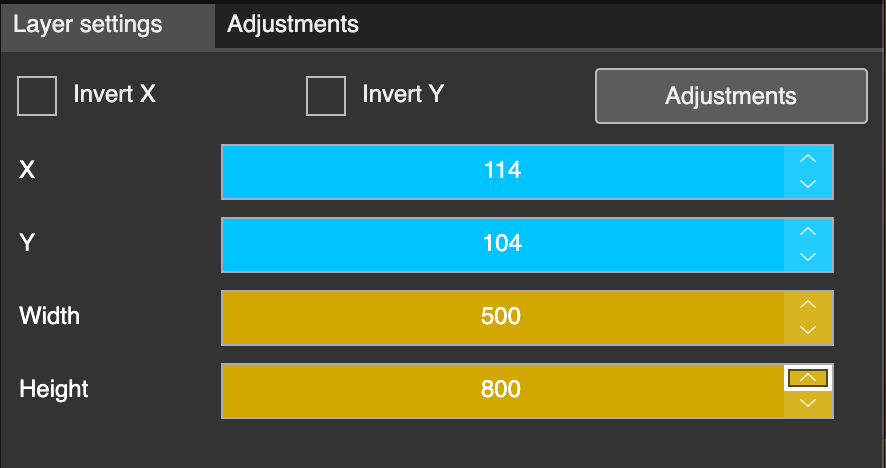
Screen grabber settings
There are only a few settings in the Screen Grabber that define the position and size of the captured area.
| Settings | Explanation |
|---|---|
| X | The X position of the grabber area. |
| Y | The Y position of the grabber area. |
| Width | The width of the grabber area. |
| Height | The height of the grabber area. |
You can mix Screen Grabber with other video layers, of course. The Invert X and Invert Y options allow you to flip the grabbed picture horizontally or vertically. The Adjustments section contains additional color settings for the grabber.
Mac OS Screen Grabbing
To use Screen Grabber correctly on Mac OS, you will need to enable the screen grabbing feature in Mac OS settings. The software will automatically open this settings window, but you can also find it by going to Privacy & Security -> Screen & System Audio Recording and checking the checkbox next to LSS4.

Enable screen grabbing in Mac OS