 LSS 4
LSS 4Play content
Once the mapping is finished, you can close the mapping window. And you are ready to play video, animation or even scrolling text on your mapping. In my example we’ll create simple color effect. To display color effect perform following steps:
1. Select Add video scene from the main window.
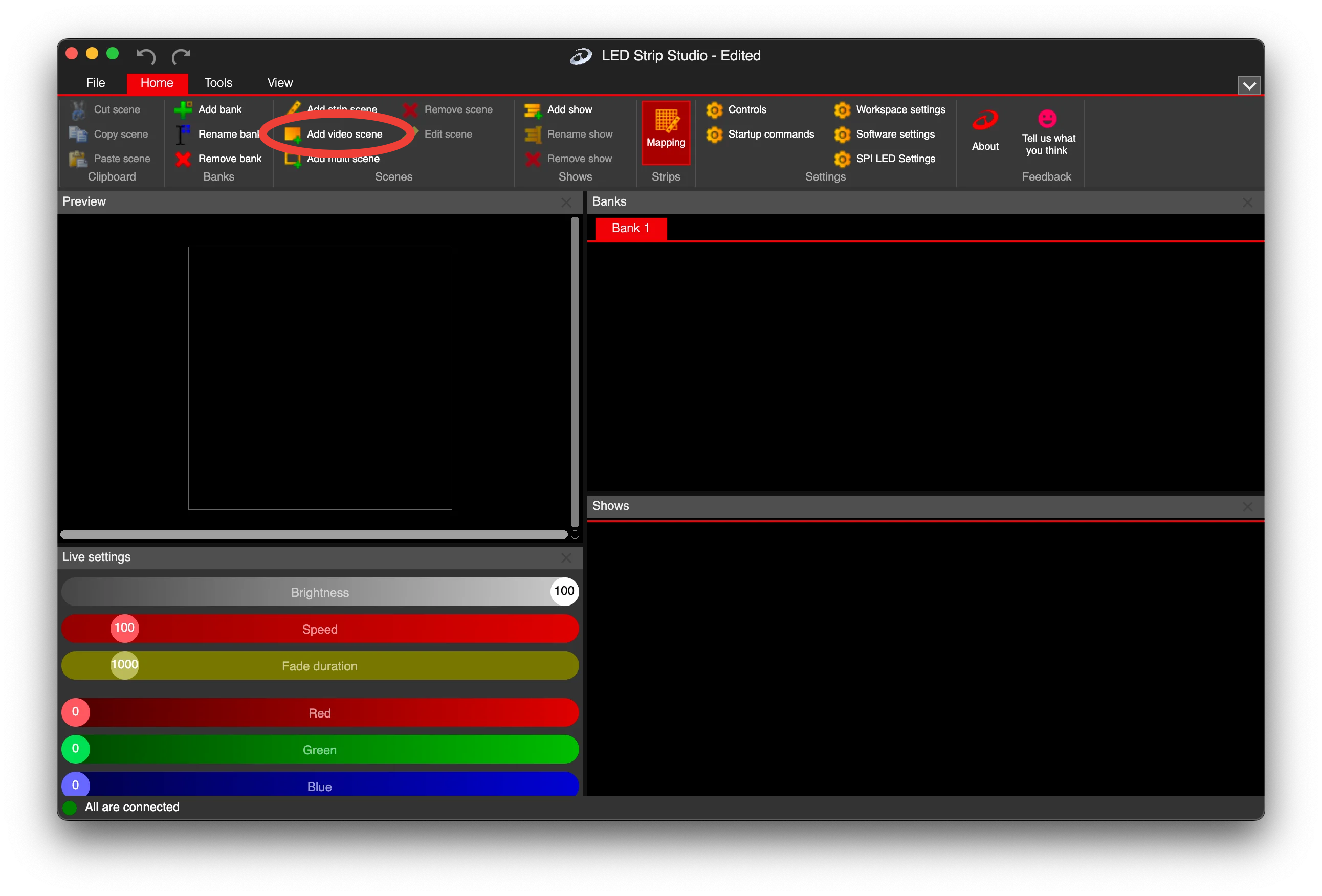
Add video scene
2. Edit the scene - click the yellow pencil icon at the bottom of the scene or just right-click the scene.
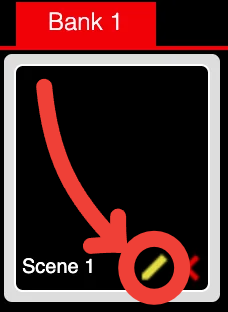
Edit scene icon
3. Add a new layer using the Add Layer button in the Layers section of the Video Scene window, and select Color Effects. In the Video Scene editor, you’ll see the new layer displaying the default video effect.
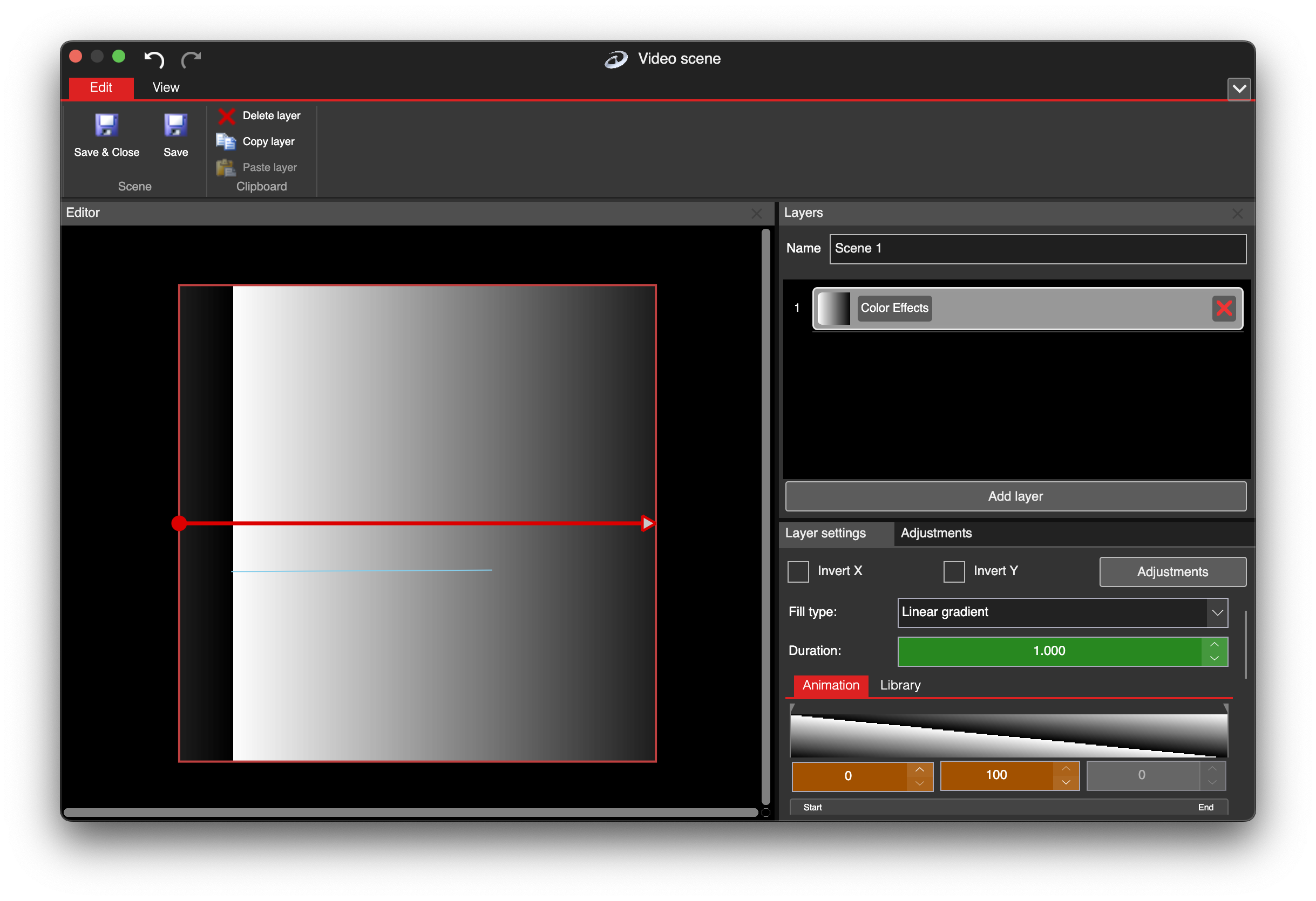
Color Effects in video scene editor
The color effect will generate content that will be displayed on your LED segment according to the mapping.