 LSS 4
LSS 4MacOS Configuration
IP Address
By default, LED Strip Studio devices operate within the IP address range 192.168.1.1 – 192.168.1.254. To use a LEC3 or Reactivo 2 device, you need to set your MacOS IP address to 192.168.1.x, where x is a number from 1 to 254.
Warning: The IP address of each LEC3 or Reactivo 2 device must be different from your computer’s IP address.
Set Your MacOS IP Address
To view the Ethernet IP configuration on macOS, click the Apple icon in the top-left corner and select System Settings. In the left-hand menu, locate and select the Network section.
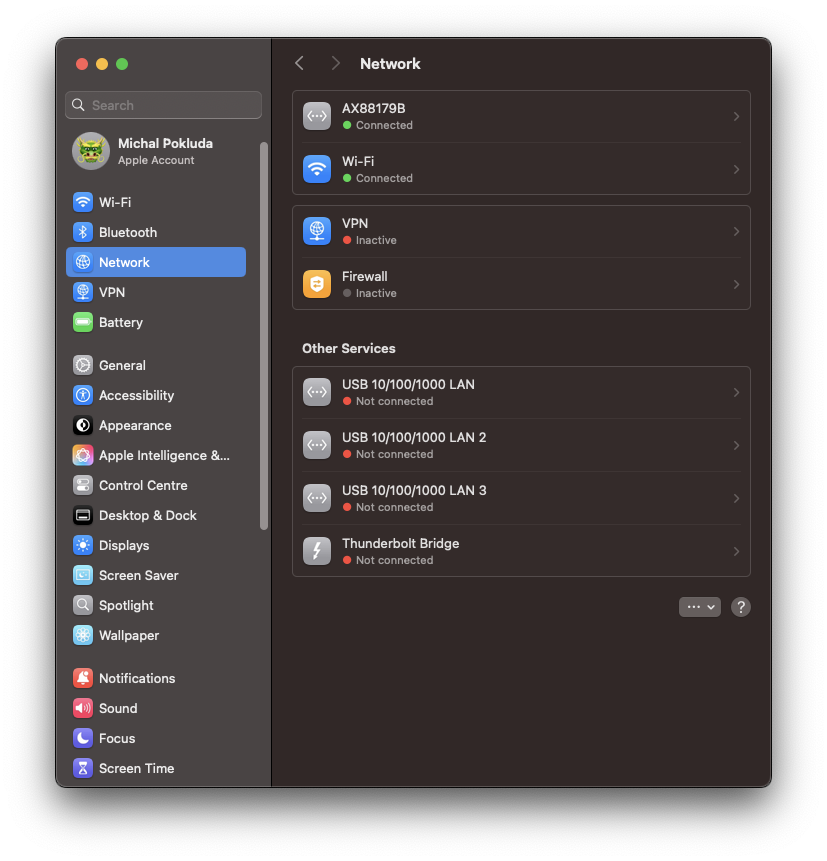
Network section in MacOS system settings
At the top of the right-hand side of the window, you will see a list of available network adapters. You will most likely be using a wired connection. In this example, the network adapter is named AX88179B. To view the adapter settings, click the arrow icon on the right.
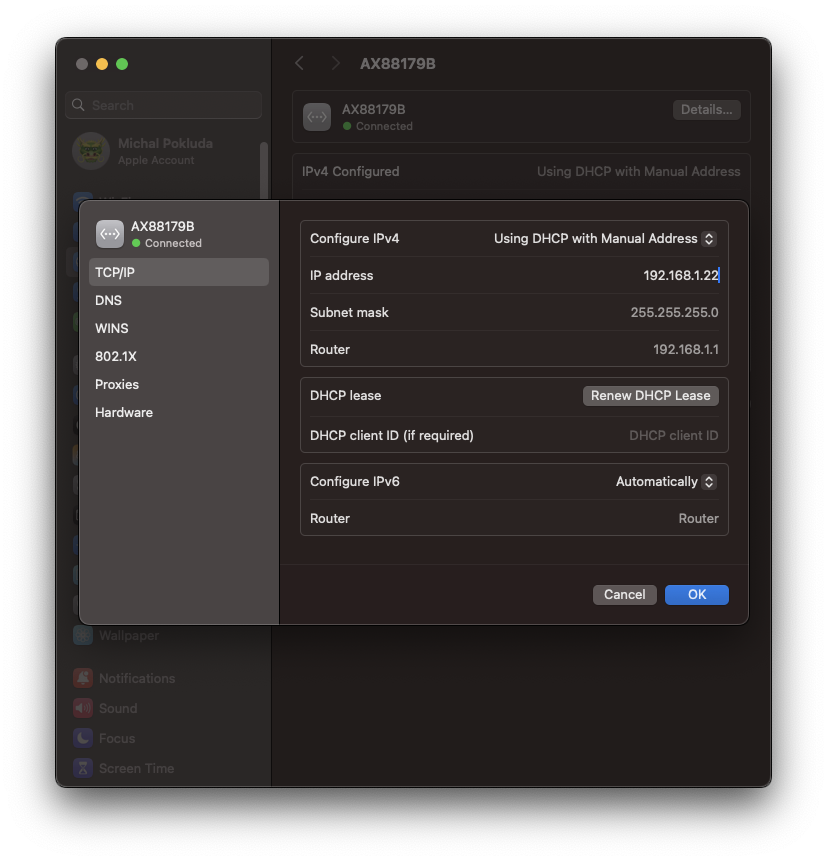
Network adapter configuration
You must set the network adapter to static IP mode. In Configure IPv4, select Using DHCP with Manual Address. This will allow you to enter the IP address in the IP Address field. Again, the last number of your IP address must be different from the last number of the IP address used by the LSS device (LEC3 or Reactivo 2).
The other network adapter settings do not need to be changed to use LSS devices. You should now be ready to use LSS 4 software with your LSS devices.