 LSS 4
LSS 4Animation Library
The animation library allows you to quickly use predefined animations or store your animations in the library for future reuse. The library is located in the Settings pane by default.
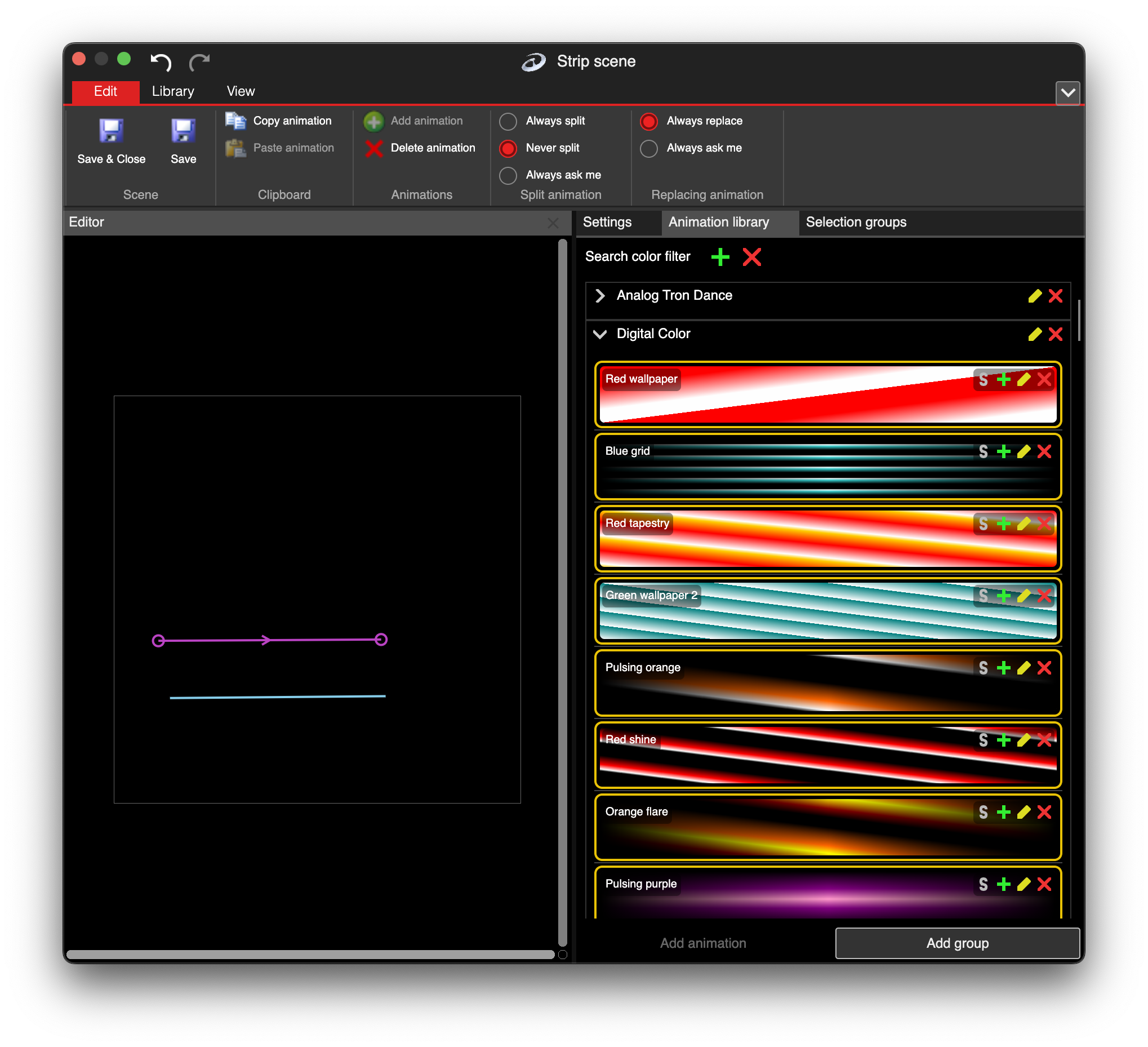
Animation library in the Settings pane
The library is divided into groups by default. There are three predefined groups, but you can also create a new one.
Use the Item from Library
There are two ways to apply a library item onto LED strips:
- Drag and drop the item from the library onto the selected strip.
- Use the green
+button next to each item in the library to paste it onto the selected LED strip segment(s).
The benefit of using the second type of application is that you can select multiple strips in the Editor and apply the animation to all of them.
Add Animation to Library
Once you have created an animation in the Settings pane, you can save it for later use in your library group. The library is independent from the workspace, so your animation will be available in all LSS4 workspaces.
To save the animation, select the strip with the animation you want to save. In the Animation Library pane, press Add Group to create a new group or select an existing group. Then, press Add Animation to store the animation in the library. The software will prompt for an animation name and save it to the selected group.
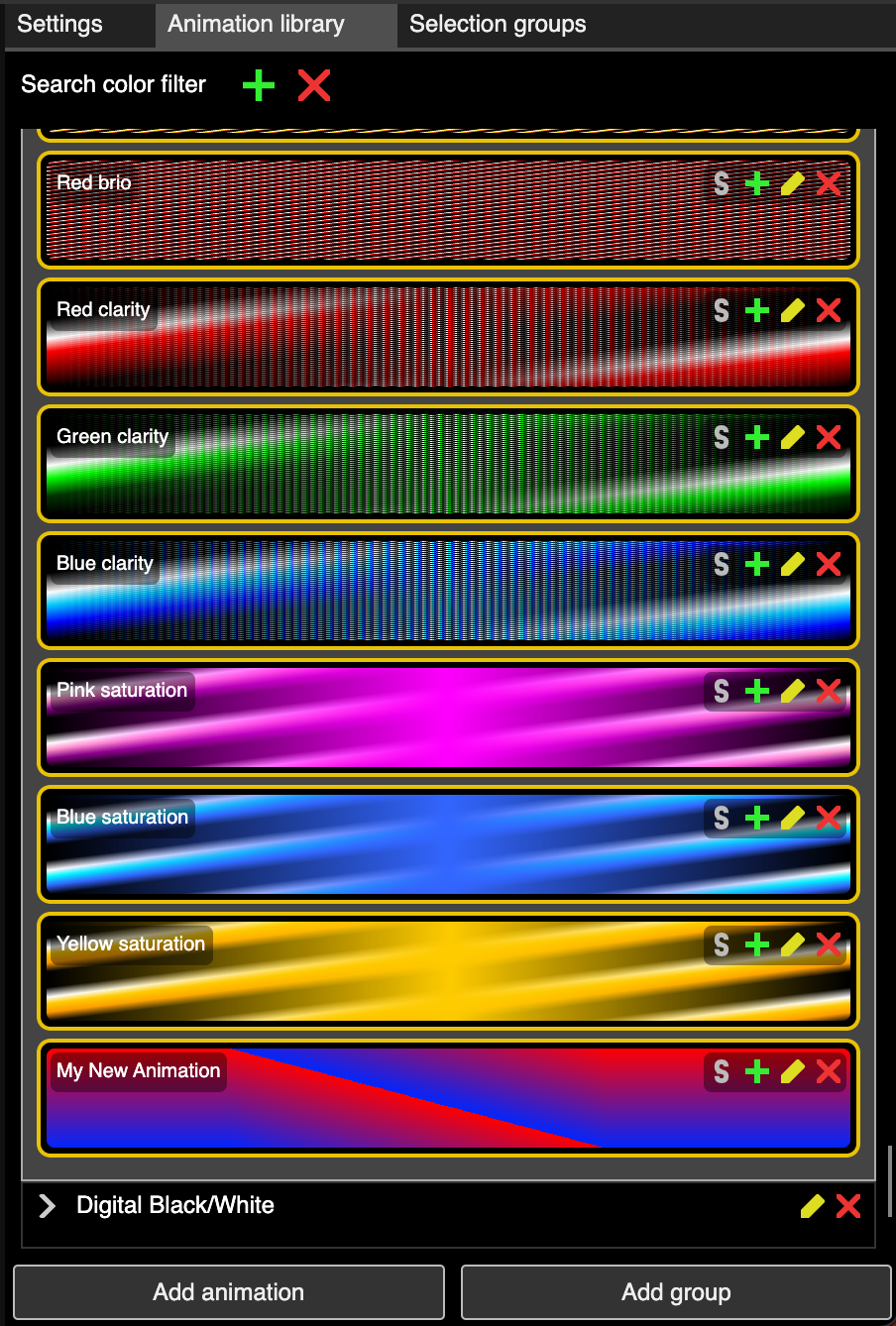
New animation stored in library
Note: The animations are different for analog and digital strips. You can use analog animations on digital strips, but you cannot use digital animations on analog strips.
Animation Hotkeys
If you create complicated LED pixel shows using LED Strip Studio animations, it is practical to assign hotkeys to your favorite animations. You can set the hotkey for a selected animation in the library by using the S button next to each animation. When hovering over the Editor window, you can then apply your favorite animation using this hotkey.