 LSS 4
LSS 4Adjustments
There are additional video adjustments available as a separate pane in the video scene editor of LSS4. These adjustments allow you to change or improve the colors on the LED output.
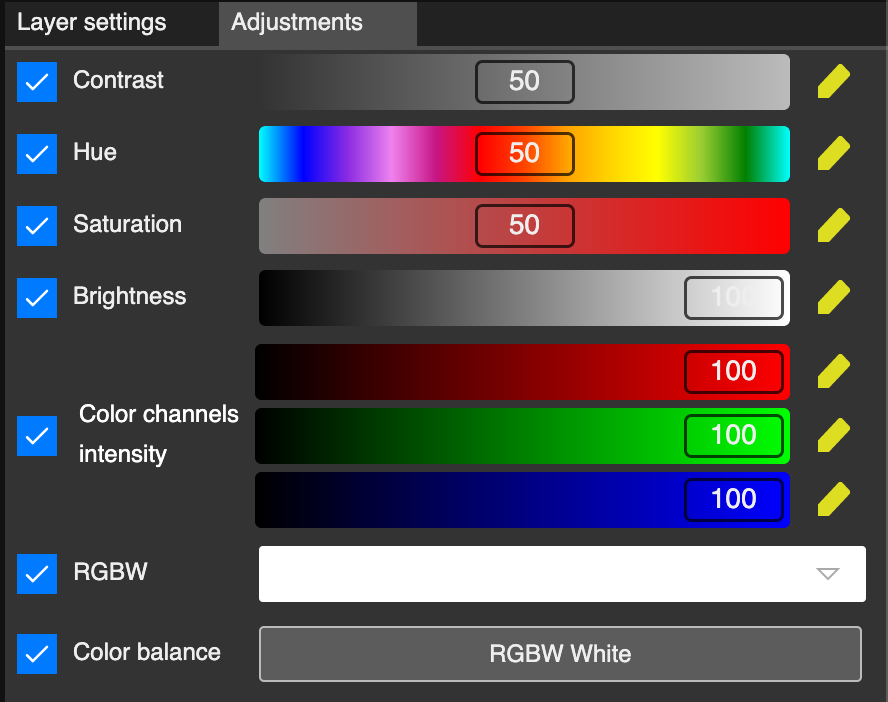
Video scene adjustments
There are the following color adjustments available. To enable each adjustment, check the left checkbox. You can also use the yellow pencil button on the right to enter an exact value with your keyboard.
| Settings | Explanation |
|---|---|
| Contrast | Color contrast. It’s perfect to hide video artefacts caused by low-quality video compression. We use it quite often with video layer. |
| Hue | Hue of the scene. |
| Saturation | Saturation of the scene. |
| Brightness | Scene brightness. |
| Color Channels Intensity | Allows you to lower certain color channel intensity. E.g. the blue color is typically oversaturated on TV cameras and it’s wise to lower its intensity. |
| RGBW | This will change all the colors of the image to selected color. Use for example in case you want to turn whole video scene to red (or any other single color). The setting will maintain the intensity of the original colors (e.g. gray will turn in dark red). |
| Color Balance | Allows you to use color balance for selected scene. It’s ideal in case e.g. you want to use just fourth white color channel instead of RGB-white when using RGBW LEDs. |
The adjustments in the video scene window pane apply to every layer in the scene. However, you can also apply separate adjustments to individual layers if you only want to affect a specific one.