 LSS 4
LSS 4Mapping Overview
There are several sections within the Mapping window.
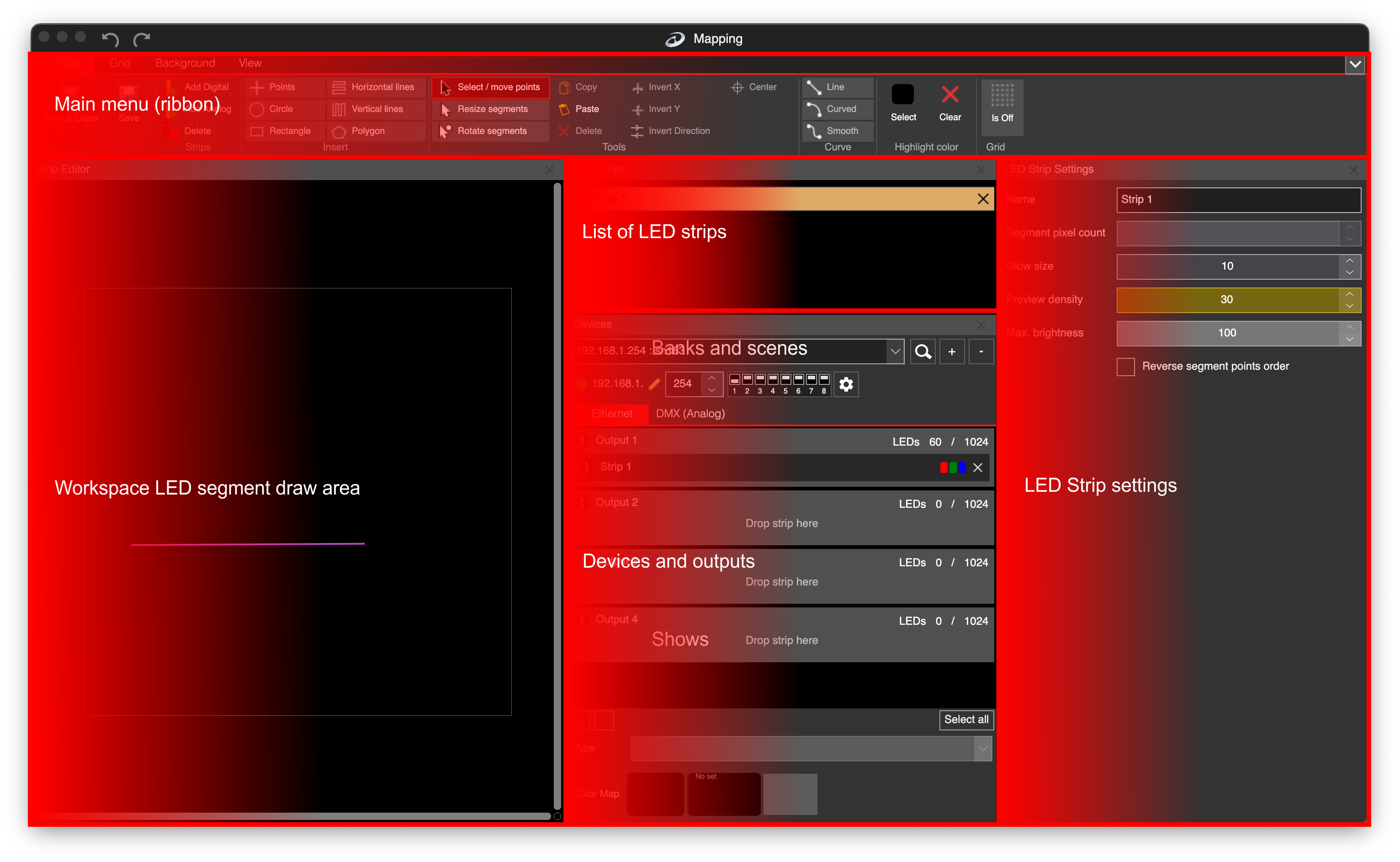
Mapping Window sections
| Section | Explanation |
|---|---|
| Main menu (ribbon) | Contains all functions of the Mapping window. |
| Workspace | The area where you draw LED segments and points. It’s called Strip Editor in the mapping window. |
| List of LED strips | Displays all LED strips in your workspace. This can also be considered a list of device outputs, since one LED strip may include several LED segments. |
| Devices and outputs | Shows the list of LEC3 or activated Reactivo 2 devices used in the workspace. |
| LED Strip settings | Settings for the selected LED segment. |
Undo/Redo
At the top of the Mapping window, you can use Undo/Redo actions. All actions performed in the Mapping window are stored in the undo/redo buffer, allowing you to quickly revert to a previous mapping if a mistake occurs. You can also use the standard keyboard shortcuts: Cmd+Z and Cmd+Shift+Z on macOS, or Ctrl+Z and Ctrl+Shift+z on Windows.
View menu
In the View menu, you can show or hide all sections of the Mapping window. There are also two predefined layouts available, each providing a practical window configuration.
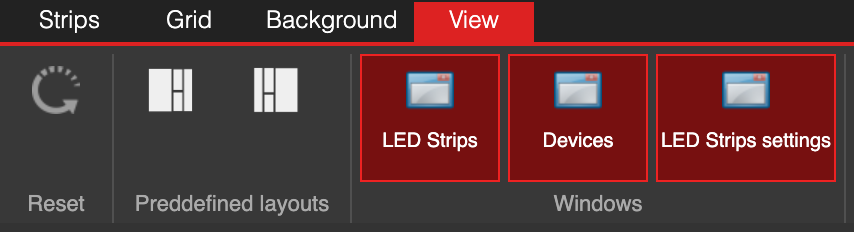
View menu