 LSS 4
LSS 4Windows Configuration
IP Address
By default, LED Strip Studio devices operate within the IP address range 192.168.1.1 – 192.168.1.254. To use a LEC3 or Reactivo 2 device, you need to set your Windows IP address to 192.168.1.x, where x is a number from 1 to 254.
Warning: The IP address of each LEC3 or Reactivo 2 device must be different from your computer’s IP address.
Set Your Windows IP Address
To view the Ethernet IP configuration on macOS, click the Apple icon in the top-left corner and select System Settings. In the left-hand menu, locate and select the Network & internet section.
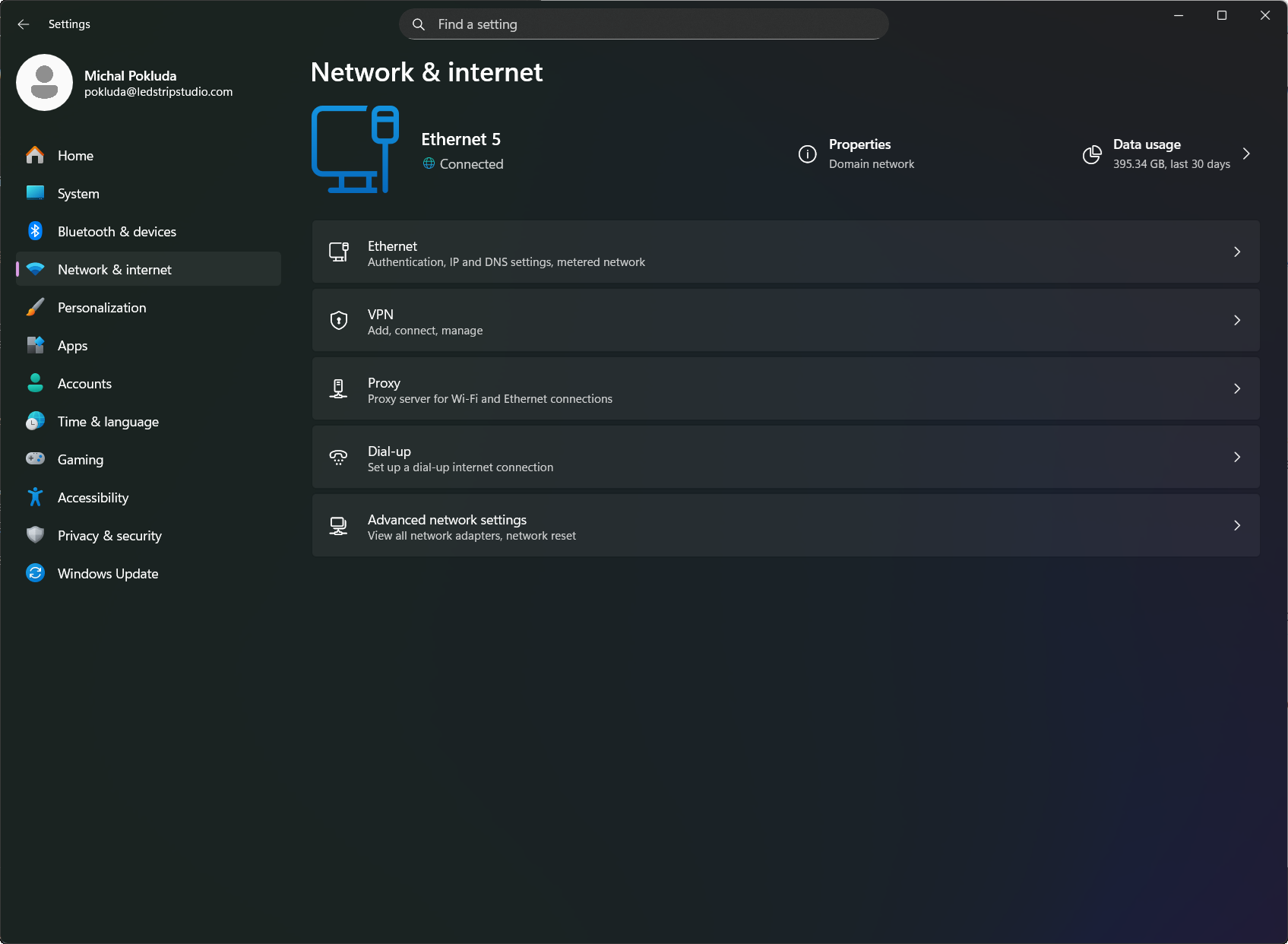
Windows Configuration
To change the IP address select Ethernet. You’ll get to the Network adapter settings.
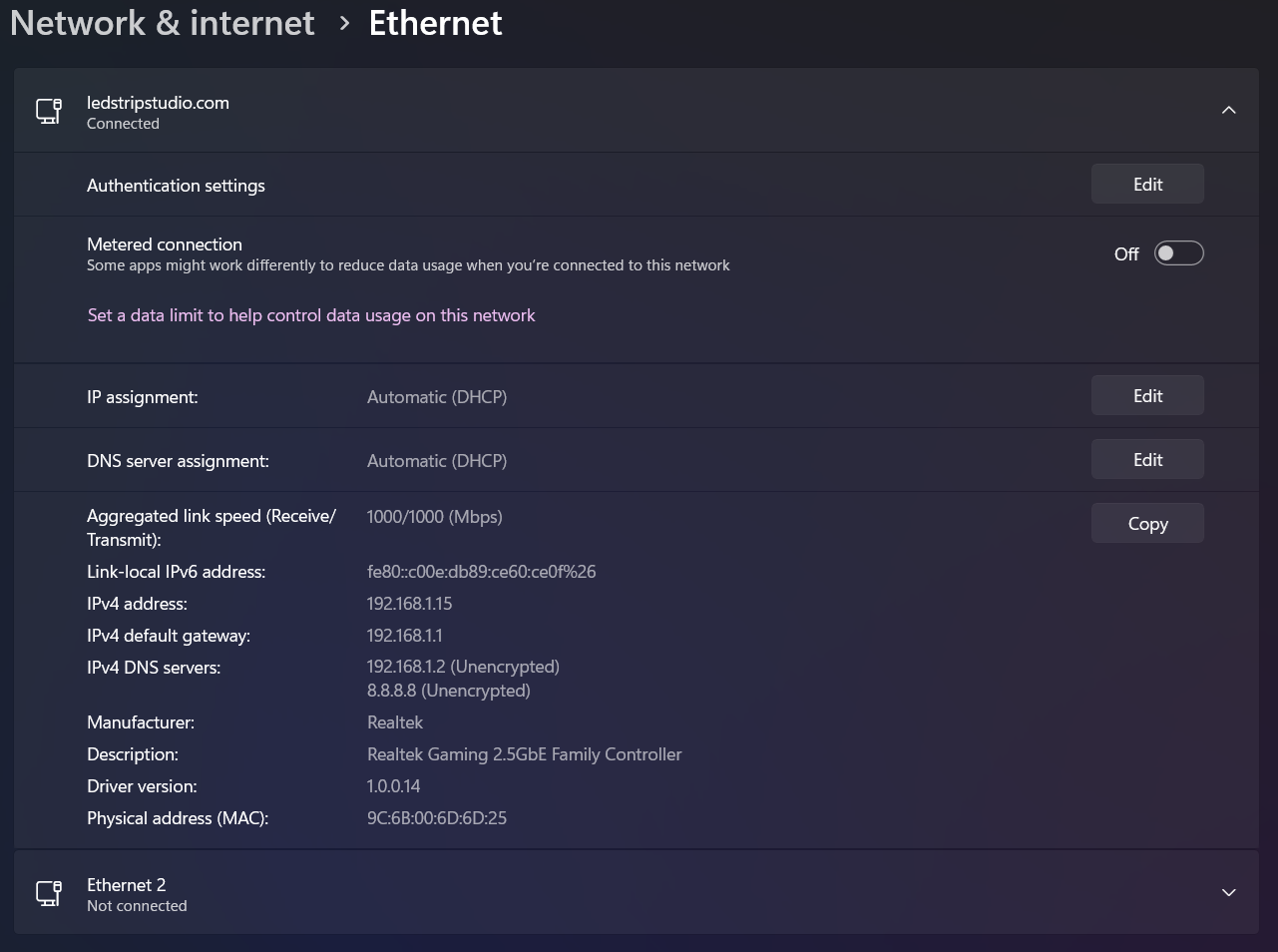
Windows Network Adapter Settings
In the IP assignment you can press Edit to change the IP address of your network adapter. You can change it to e.g. 192.168.1.22. Again, the last number of your IP address must be different from the last number of the IP address used by the LSS device (LEC3 or Reactivo 2).
The other network adapter settings do not need to be changed to use LSS devices. You should now be ready to use LSS 4 software with your LSS devices.
Advanced Topics
We’ve prepared advanced topics on Windows network configuration. For example, we cover how to assign two different IP addresses to a single Ethernet controller and how to check whether a specific IP address is connected to the network.
Ethernet/Network configuration of computers and pixel LED controllers
Ethernet/Network configuration of computers and pixel LED controllers - advanced topics