 LSS 4
LSS 4Assign LED Segments to Output(s)
Once you’ve located the connected LED pixel devices (LEC3 or activated Reactivo 2) in the Mapping window, you can start drawing LED pixel segments and assign them to the device outputs.
To add new LED segment into workspace perform following steps.
1. Open Mapping window and select Add Digital

Add digital strip
In the LED Strips list new LED segment appears (called Strip 1).
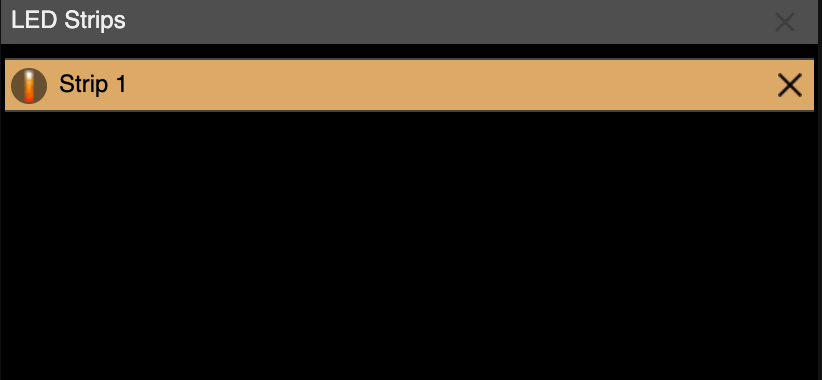
New LED strip segment in the list of segments
2. Now you can draw the new strip segment in the Strip Editor section of the mapping window. Just hold down left mouse button and draw some segment.
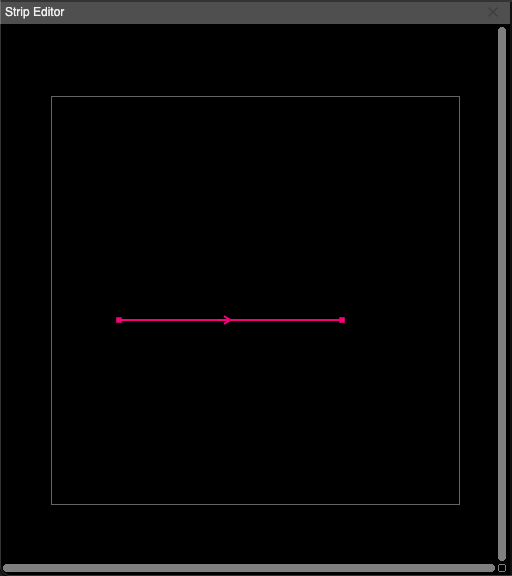
New segment in the strips editor
The strip you draw in the Strip Editor can be simple line, but also complex shape divided into multiple segments. You can see the properties of selected segment in the LED Strip Settings portion of the mapping window. Here you can set the number of LED pixels using Segment pixel count.
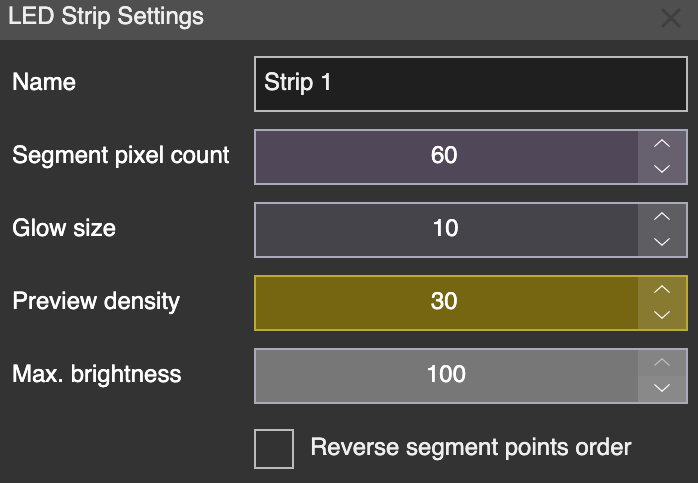
Selected segment settings where you can set number of pixels per segment (Segment pixel count)
3. Now you can assign the LED strip to a device output. Simply drag and drop the strip from LED Strips to Devices on the desired output (1–4 on the LEC3 device). This assigns the content from Strip 1 to output 1 of the LEC3 device.
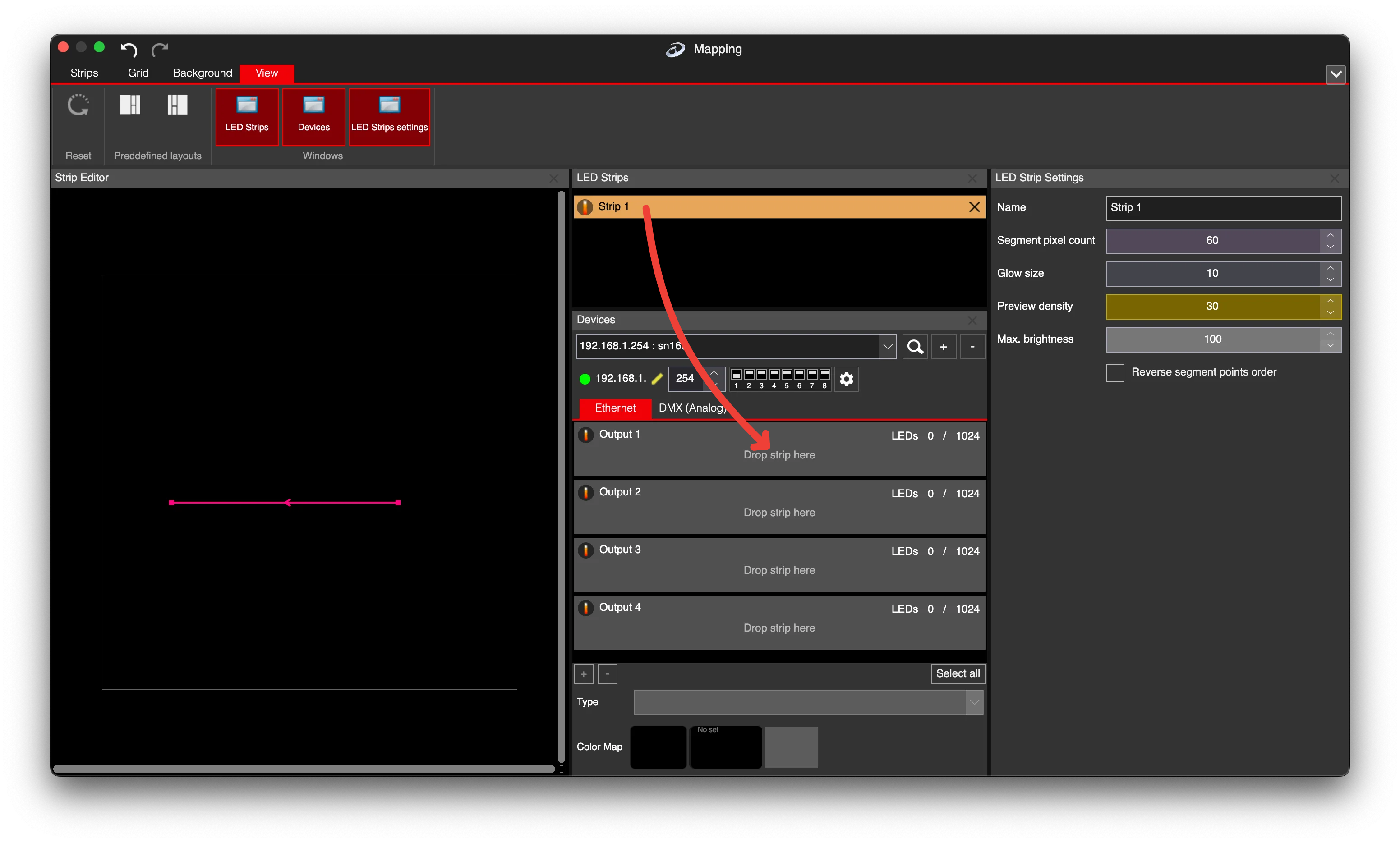
Drag and drop strip to device
Similarly, you can assign additional strip segments to outputs 2–4. Once your mapping is complete, you can play the content on Strip 1, and it will be displayed on output 1 of the LEC3 device.