 LSS 4
LSS 4Exporting to SD Card
LSS4 contains powerful export features that allow you to save standalone animations to the SD card of LEC3, SPI Matrix or Reactivo 2 devices. You can export individual scenes or entire shows to the SD card. If you want to export to a device’s SD card, the device must be added and configured to Mapping. The software will automatically export only the content belonging to a certain device.
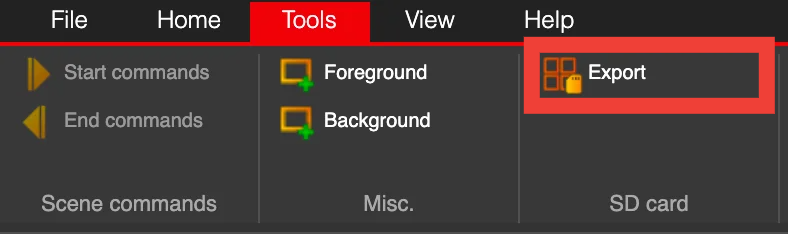
Export to SD card in Tools menu
After clicking the Export button, a window will appear. From there, you can select the scenes and shows that you want to export to your SD card.
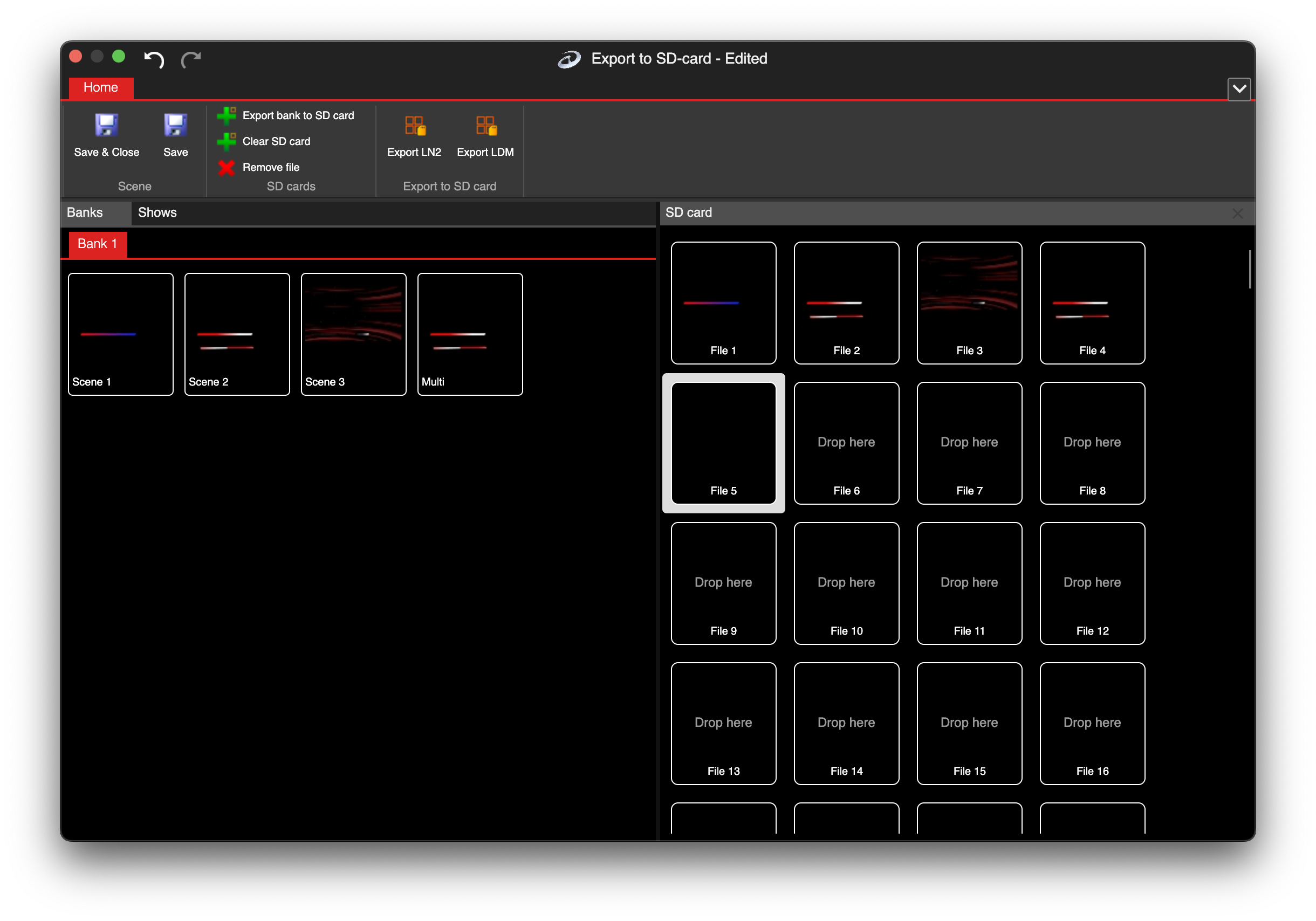
Export to SD card window
The SD card of LEC3, SPI Matrix or Reactivo 2 devices contains up to 255 different animation slots. Each slot can contain a simple animation or even an entire show.
The left side of the Export window contains Banks and Shows, which display all of your scenes and shows in the workspace. To assign a certain scene or show to an SD card slot, simply drag and drop it to the SD card position on the right. Again, you can assign scene but also entire show to every SD card slot.
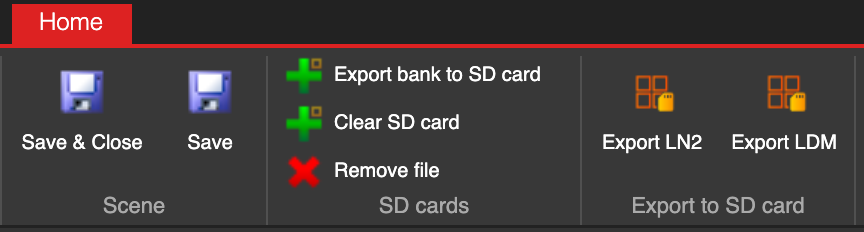
Main menu of export SD card window
There are additional commands in the menu of the Export to SD window.
| Command | Explanation |
|---|---|
| Save & Close | Save the SD card configuration and close the Export SD window. |
| Save | Save the SD card configuration without closing the window. |
| Export Bank to SD Card | Export all scenes from the current bank and assign them starting at SD card slot 1. |
| Clear SD Card | Clear all assigned scenes and shows from the SD card. |
| Remove File | Remove a scene or show from the selected SD card slot. |
| Export LN2 | Export pixel data (digital strip) for all slots to the SD card. |
| Export LDM | Export DMX (analog strip) data for all slots to the SD card. |
Once you press Export LN2, an additional window will open to handle the export process.
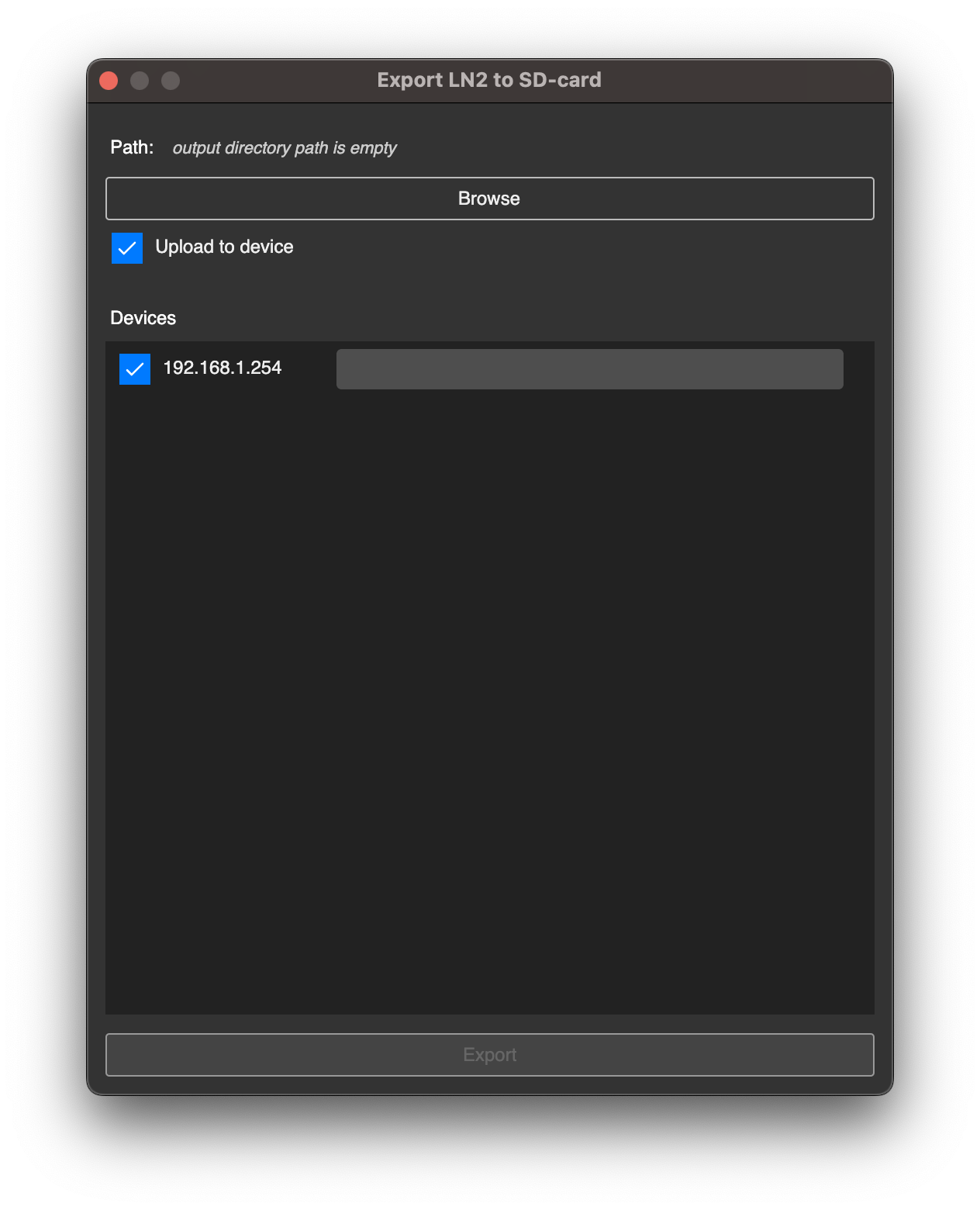
Export process window
You can export all scenes and shows to either a disk or directly to connected LEC3, SPI Matrix or Reactivo 2 devices. If you want the exported content to be automatically uploaded to the SD card of all connected devices, please check Upload to Device. If you only want to export the content to a disk, uncheck the Upload to Device option and click Browse to select the export directory on your disk.
Once you click on the Export button at the bottom of the window, the software will export all the content and upload it to the SD card.