Portable Workflow

Create at Home.
Deploy at the Venue.

Store all your video files and assets in subfolders of the workspace, and moving your entire LED project to another computer becomes a simple copy-paste. No broken file links, no missing assets, no re-exporting. Just works.

📁

Self-Contained Projects

Keep all videos, images, and assets in subfolders inside the workspace folder. The project file uses relative paths — move the folder anywhere and everything still works.

🔄

Cross-Platform

The same workspace opens on Windows and macOS without conversion. Create on a Mac, hand off a USB drive to the venue's Windows machine — it opens and runs exactly as designed.

📺

Used by TV Studios

TV studios use this workflow to streamline production: designers create LED content at the production office and deliver completed workspaces to the broadcast studio for live playback.

How workspace transfer actually works

The key is file organization. When you create a project in LSS4, keep a disciplined folder structure: a main workspace folder, with subfolders for videos, images, and other assets. LSS4 stores references to files using paths relative to the workspace folder — so as long as the folder structure stays intact, it doesn't matter where the workspace folder is located on disk.

When you're ready to move to the venue machine: copy the entire workspace folder, paste it onto the destination computer (USB drive, network share, or cloud storage transfer), open LSS4, and load the workspace. All assets resolve immediately. There's no re-linking, no missing file dialogs, no manual path updates.

  • Keep all assets in subfolders of the workspace folder
  • File references use relative paths internally
  • Copy entire workspace folder to transfer — no other steps
  • Works via USB drive, network share, or cloud storage
  • Cross-platform: Mac workspace opens on Windows and vice versa
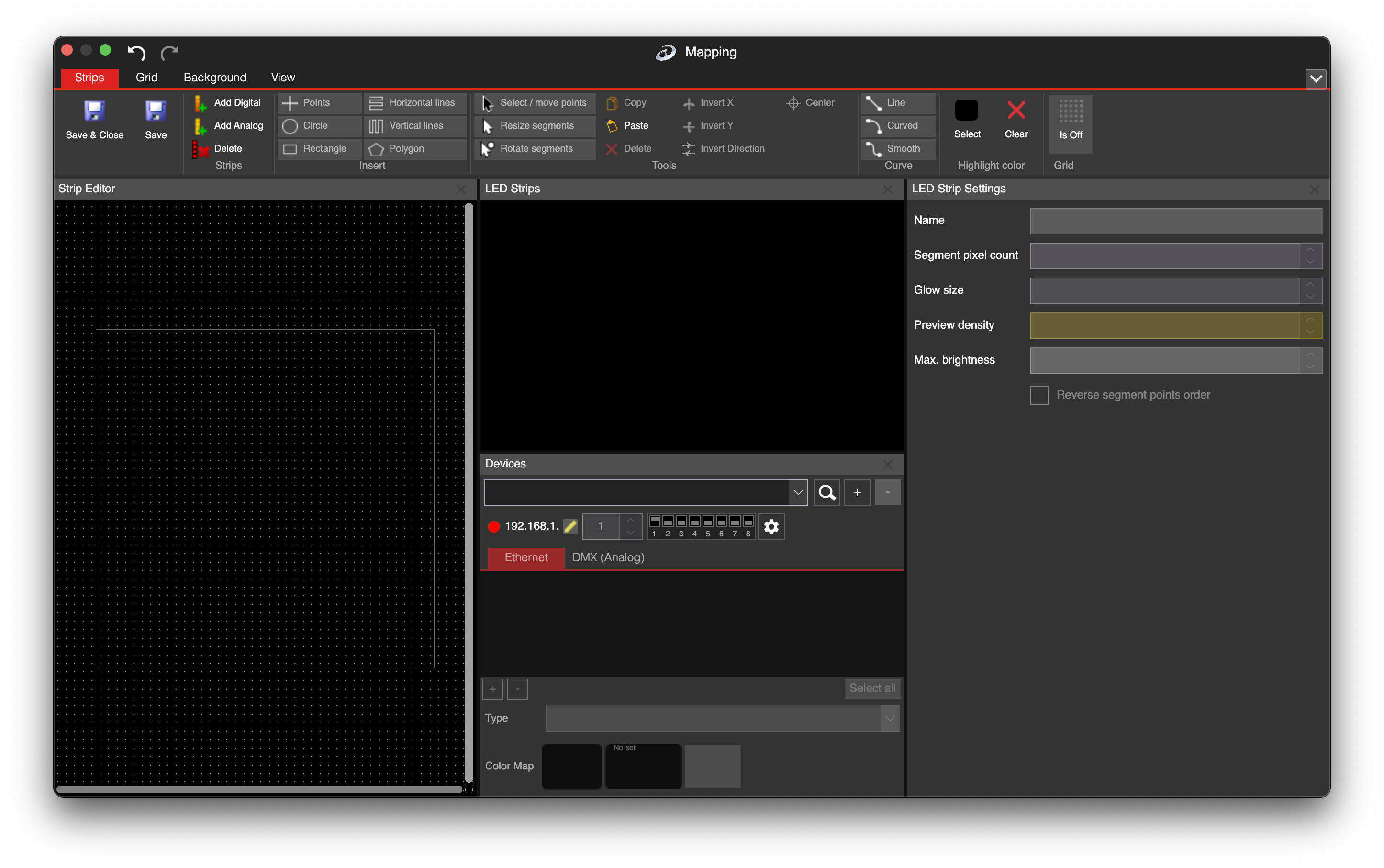
LSS4 workspace showing organized project structure

Workspace transfer questions

How do I transfer my LSS4 project to another computer?

Store all your video files, images, and other assets in subfolders within your workspace folder. Then simply copy the entire workspace folder to the destination computer — via USB drive, network share, or any file transfer method. Open LSS4 on the destination machine, load the workspace, and all assets will be found automatically because file references use relative paths.

Can I create a project on Mac and run it on Windows?

Yes. LSS4 uses the same workspace file format on both macOS and Windows. A project created on Mac opens and runs on Windows without any conversion. The same is true in reverse. This cross-platform portability is one of the key workflow advantages of LSS4 for teams that work across different operating systems.

Contact & Support

Real people, real answers. Choose the channel that works best for you.

📧

Email

Send us your questions, project details, or feature requests. We reply with thorough answers.

[email protected]
💬

WhatsApp

Quick questions, photos of your installation, or a live voice call — WhatsApp works for all of it.

+421 948 280 393
📹

Zoom Consultation

Book a screen-share session with the team. Walk through your project, get hands-on guidance.

Book a Call
🎧

Talk to Support

Use the contact form to describe your issue or question in detail. We follow up promptly.

Contact Us
✈️

On-Site Support

For large-scale installations — stadiums, studios, architecture — we travel worldwide to assist on-site.

[email protected]
⬇️

Download Free Trial

Try LSS4 with full features. No credit card required. Windows and macOS.

Download Now

Your LED project. Any computer.

The portable workspace design means your project is never locked to one machine. Create anywhere, deploy everywhere.