Skip the "trust me, it'll look great" conversation. Import a photo of the actual space, overlay your LED mapping on it, and let clients see — for real — how the installation will look in their venue. Then render it to video and send it over before installation day.
Background Image
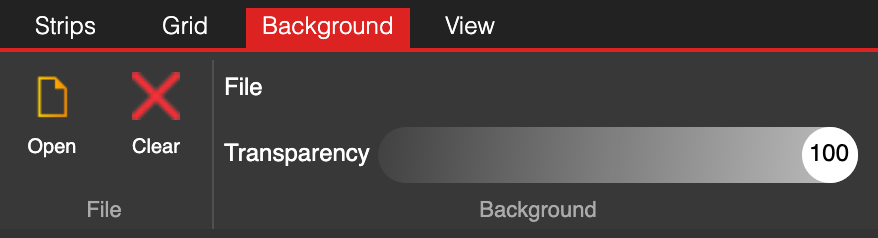
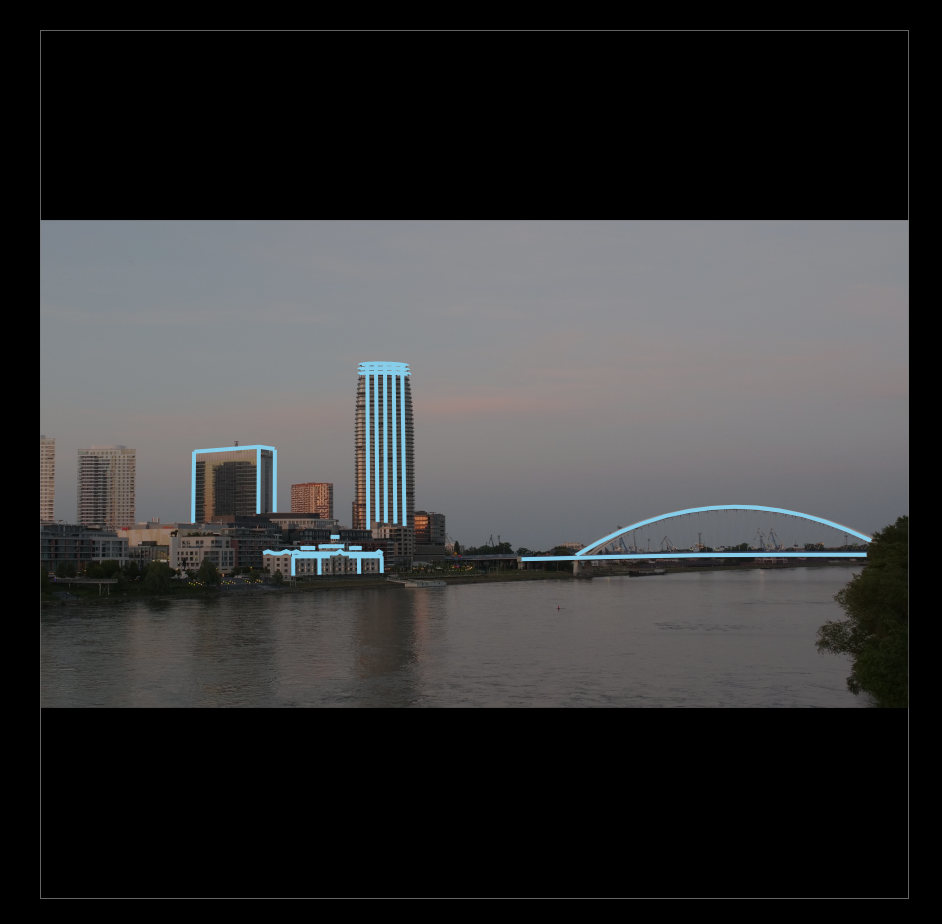
Take a photo of the client's venue — the room, the facade, the stage — and load it as a background in LSS4's mapping workspace. Then draw your LED segments right on top of it. The result is a mapping that's not just technically correct, it's visually convincing.
Clients can see exactly where each strip will go, how the layout follows the room's geometry, and whether the design matches their vision. It's much easier to get sign-off when they can actually see it in their own space.
Render Preview
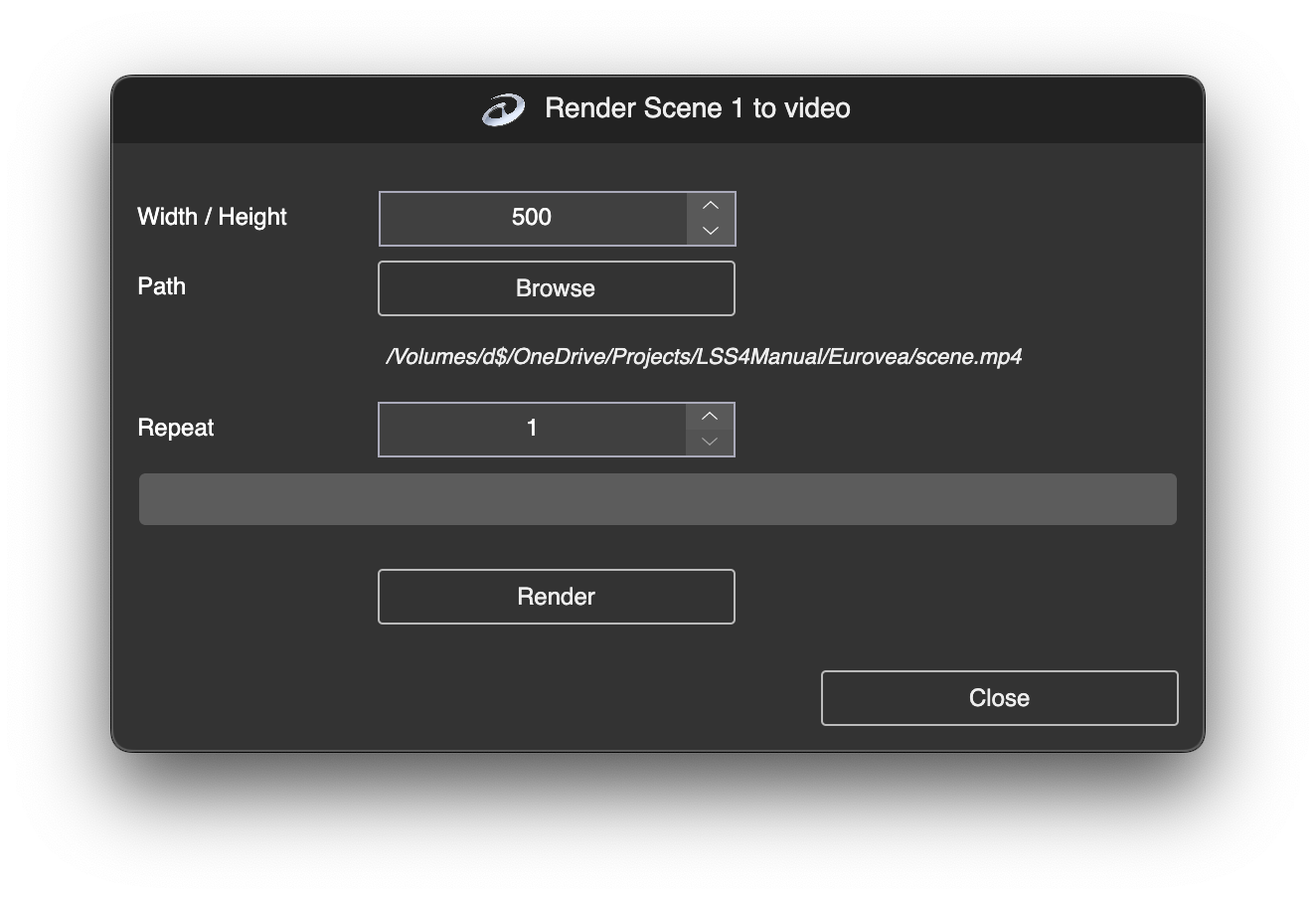
The background visualization shows the physical layout. The render preview goes further — you can export any scene or your entire show as a video file and share the result with a client before a single LED is mounted.
It's also useful internally. Your team can review a show's pacing and content in a standard video player, share it for feedback, and iterate without needing the physical hardware running. For large installations, this kind of preview workflow saves significant on-site time.
Use Cases
Before committing to an installation plan, share a background visualization and a render video. Get approval in writing before you start — and avoid expensive changes mid-installation.
Use a background photo from the site survey to plan where strips will go, how they'll route around obstacles, and how many segments you'll need. Makes planning far more accurate.
Render preview videos of lighting scenes and share them for creative feedback before installation. Essential for event lighting, retail displays, and any project where visual effect needs approval.
FAQ
How do I show a client what their LED installation will look like using LSS4?
Two tools: First, import a photo of the client's space as a background in the mapping workspace and draw your LED segments over it. The client can see the segments in the context of their actual space. Second, once your lighting content is built, use the Render Video tool (under Tools menu) to export a video of the scene or full show. Send that video to the client so they can see the effect in motion — no hardware required on their end.
Can I render a preview video of my LED show before the installation is complete?
Yes. The render preview feature exports your content to a standard video file without needing any physical hardware. Design your scenes in LSS4, then render them from the Tools menu. The resulting video shows exactly what the LED installation would look like when running that content. Useful for client approval, team review, and documentation.
What image formats can I use as a background in the mapping workspace?
LSS4 supports standard bitmap image formats for background import. JPEG and PNG photos work well. The image displays behind the Strip Editor workspace, and you can adjust its transparency so the background doesn't obscure your segment drawing.
Get in Touch
Real people, real answers. Choose the channel that works best for you.
Send us your questions, project details, or feature requests. We reply with thorough answers.
[email protected]Quick questions, photos of your installation, or a live voice call — WhatsApp works for all of it.
+421 948 280 393Book a screen-share session with the team. Walk through your project, get hands-on guidance.
Book a CallUse the contact form to describe your issue or question in detail. We follow up promptly.
Contact UsFor large-scale installations — stadiums, studios, architecture — we travel worldwide to assist on-site.
[email protected]Try LSS4 with full features. No credit card required. Windows and macOS.
Download NowWhen clients can see the proposed installation on a photo of their own space, approvals happen faster. Download LSS4 and close your next project more confidently.