The Screen Grabber in LSS4 captures any portion of your Mac or Windows desktop in real-time and sends it directly to your pixel LED installation. Use it with Resolume, MadMapper, video players, presentation software — anything that displays on screen.
How It Works
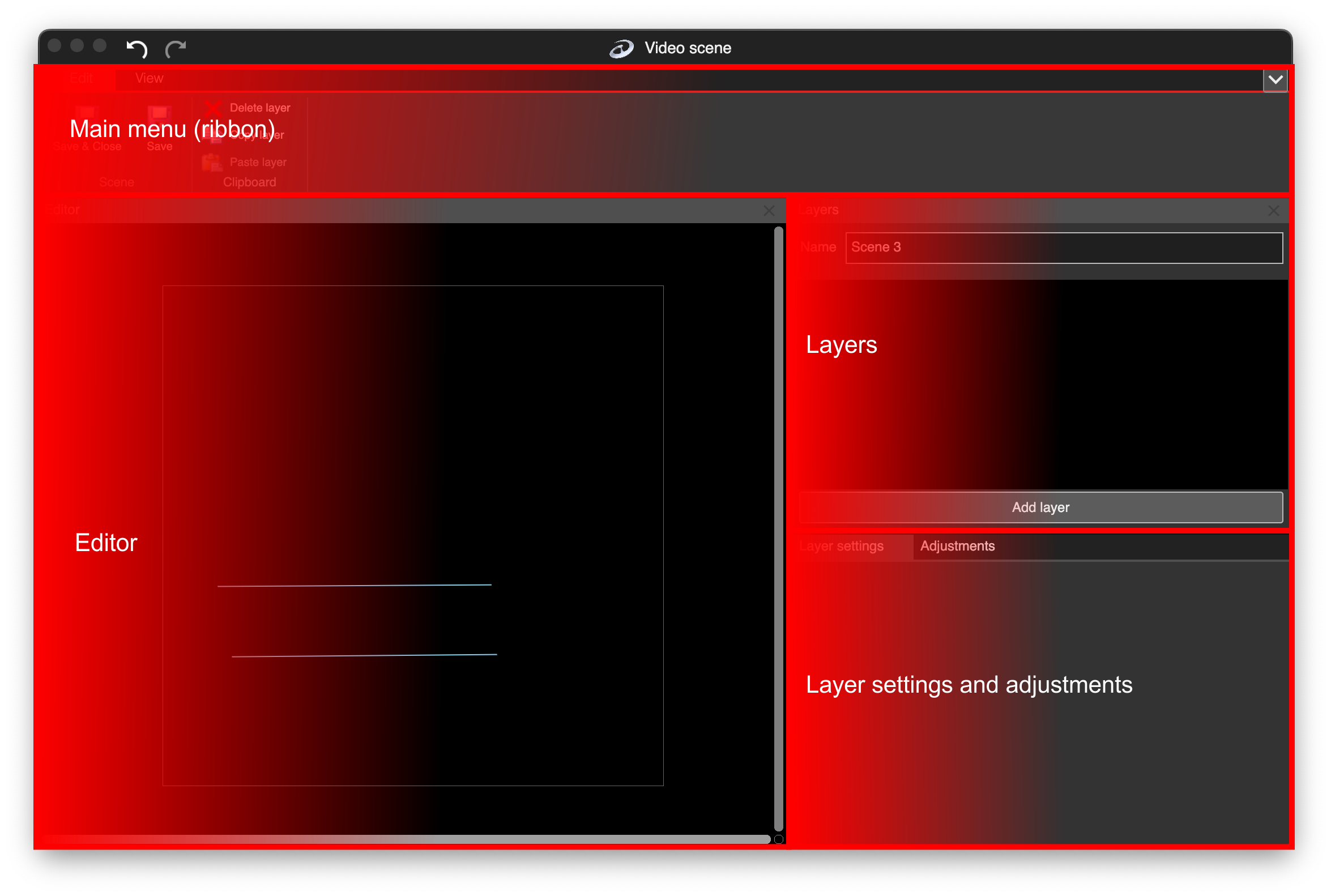
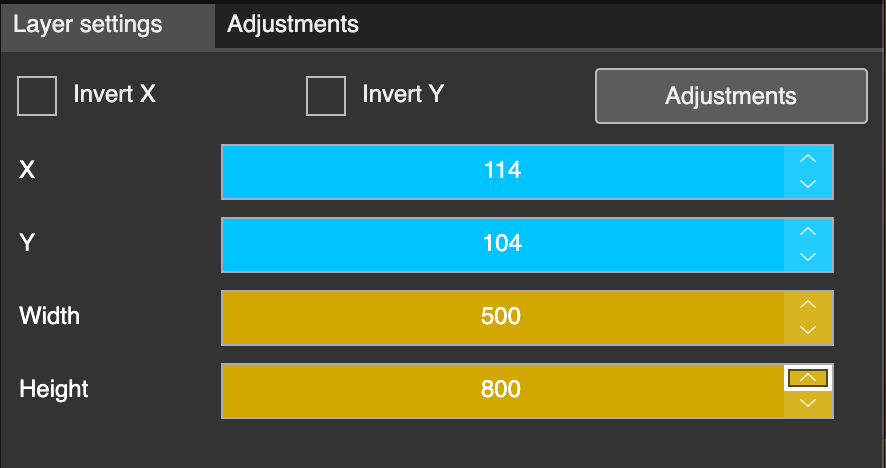
Screen Grabber works as a layer type in the LSS4 video scene. Add a Screen Grabber layer, define the X position, Y position, width, and height of the capture area on your screen, and LSS4 continuously captures that region and feeds it into the video scene as a live texture. The captured content drives the LED pixels in real-time with low latency.
This is genuinely useful for live event work. Run your VJ software in one window, position a Screen Grabber over its output area, and the VJ visuals appear on your LED installation without any additional hardware, NDI streams, or video capture cards.
Integration Use Cases
Software developers who need LED pixel output often don't want to implement ArtNet, E1.31, or SPI protocols from scratch. Screen Grabber lets them use LSS4 as a display layer — their application renders to a window on screen, LSS4 captures it, and the LEC3 hardware handles the conversion to the LED protocol. No LED-specific code needed in the application.
This approach is used by developers building custom control applications, data visualizations, generative art software, and interactive installations who want to output to pixel LEDs without the complexity of direct hardware integration.
Platform Notes
On macOS, you need to grant Screen Recording permission to LSS4 in System Settings → Privacy & Security → Screen Recording. Check the checkbox next to LSS4. This is a one-time setup required by macOS privacy protections for screen capture applications.
On Windows, Screen Grabber works without additional permission setup. Simply add a Screen Grabber layer to the video scene, configure the capture area coordinates, and LSS4 starts capturing immediately.
FAQ
Can I use Resolume or MadMapper output on my LED installation with LSS4?
Yes. The simplest way is to use Screen Grabber: run Resolume or MadMapper on the same computer as LSS4, set their output to a window or monitor area, and configure the Screen Grabber layer in LSS4 to capture that area. The captured content feeds into your LED installation in real-time. This requires no additional hardware, software, or network configuration beyond what LSS4 already uses for hardware control.
What is the latency of the Screen Grabber feature?
The Screen Grabber is designed for high performance with low time delay between the image on screen and its appearance on the LED pixels. The actual latency depends on your computer's processing speed, the capture area size, and the number of layers in the scene, but it's typically fast enough for live performance use.
Can I combine Screen Grabber with other layers in the same scene?
Yes. The Screen Grabber is a layer type in LSS4's video scene and can be combined with video layers, image layers, text layers, and color effect layers in the same scene. This lets you, for example, use Screen Grabber for a live background capture while adding a text overlay or logo image on top.
Get in Touch
Real people, real answers. Choose the channel that works best for you.
Send us your questions, project details, or feature requests. We reply with thorough answers.
[email protected]Quick questions, photos of your installation, or a live voice call — WhatsApp works for all of it.
+421 948 280 393Book a screen-share session with the team. Walk through your project, get hands-on guidance.
Book a CallUse the contact form to describe your issue or question in detail. We follow up promptly.
Contact UsFor large-scale installations — stadiums, studios, architecture — we travel worldwide to assist on-site.
[email protected]Try LSS4 with full features. No credit card required. Windows and macOS.
Download NowScreen Grabber makes LSS4 the bridge between your creative software and your pixel LED hardware. Download and start routing your content.