
Alignment Grids

Precision Alignment for
Any LED Layout

Standard grids work for simple runs. But circular pixel arrays, unconventional patterns, and complex multi-zone installations need more. LSS4 gives you three distinct grid types — each configurable to match your exact installation geometry.

LSS4 grid settings panel

Cartesian Grid

Standard rectangular grid configurable in X and Y point counts. Ideal for matrix installations, pixel panels, or any layout where LEDs are arranged in rows and columns.

Polar Grid

Circular grid pattern for sun-burst, radial, and ring installations. Define angular divisions and radial rings for snap points in a circular arrangement.

⚙️

Custom Pattern Grid

Define your own snap point distribution using Pattern X and Y values. Specify both point count and relative spacing, with a multiplier for complex distributions.

The Cartesian grid — simple, effective

The default Cartesian grid automatically covers your entire Strip Editor workspace. Set the number of horizontal and vertical snap points, and LSS4 distributes them evenly. Familiar from any professional drawing application, but here segments actually snap to the grid — making it genuinely useful for aligning parallel runs and maintaining consistent spacing.

  • Auto-distributed across the full Strip Editor workspace
  • Configurable horizontal and vertical point counts
  • Toggle visibility without removing the grid configuration
  • Multiple Cartesian grids can coexist in one workspace
  • Position and size adjustable in the grid settings panel
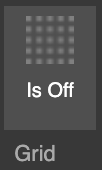
Cartesian grid in LSS4 with on/off toggle

Polar grids for round LED installations

Circular LED pixel arrays are one of the most popular decorative formats — rings, halos, sunbursts, and radial fan patterns. LSS4's polar grid solves the alignment challenge cleanly. Define how many radial rings and angular divisions you need, and the grid places snap points in a circular arrangement that your segments align to naturally.

Whether you're mapping a single halo ring or a multi-ring sunburst, the polar grid makes precise alignment straightforward instead of a manual pixel-by-pixel exercise.

  • Configurable number of angular divisions (spokes)
  • Configurable number of radial rings
  • Drag and position anywhere in the workspace
  • Resize to match the actual physical circle dimensions
  • Combine with Cartesian grids for hybrid layouts
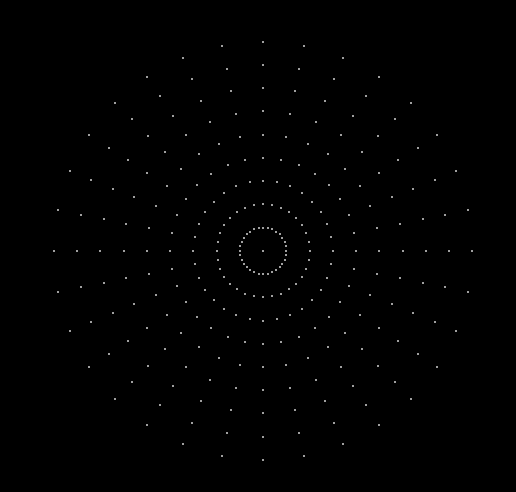
Polar circular grid in LSS4

Define your own snap point patterns

Sometimes an installation has unusual geometry that doesn't fit standard grids — maybe pixel pitch varies along one axis, or you're working with a non-uniform matrix. The custom pattern grid lets you specify the exact distribution of snap points using Pattern X and Pattern Y values. You define both point count and relative spacing values as a sequence.

It's not something you'll use every day, but when you need it, it's the kind of feature that saves hours of manual adjustment.

  • Pattern X and Y define custom point distributions
  • Set both point count and relative spacing per axis
  • Pattern multiplier for repeated or scaled distributions
  • Drag, resize, and reposition like any other grid
  • Multiple custom grids can coexist in the same workspace

Custom pattern grid in LSS4

All three grid types in action

Grid settings panel

Grid settings panel

Polar grid for circular LED layouts

Polar (circular) grid

Custom pattern grid in LSS4

Custom pattern grid

Grid feature questions

Can I use multiple grids at the same time in LSS4?

Yes. LSS4 lets you add multiple grids of any type to the same workspace simultaneously. Each grid has its own position, size, and point count. This is useful for complex installations where different zones have different alignment requirements — for example, a circular center array surrounded by straight runs on either side.

When would I use a polar grid for LED mapping?

Use a polar grid whenever your LED installation is circular or radial: halo rings, sunburst patterns, pixel halos around speakers, or decorative circular elements. Instead of trying to align circular segments to a rectangular grid (which never quite works), the polar grid gives you exact snap points matching the circular geometry.

What is the custom pattern grid useful for in LED pixel mapping?

The custom pattern grid is for non-uniform LED arrangements where standard rectangular or circular patterns don't match. For example, if your installation has variable pixel pitch — denser in one area, sparser in another — you can define a custom spacing pattern that matches. Pattern X and Pattern Y values define how snap points are distributed along each axis.

Can I turn grids off temporarily without deleting them?

Yes. There's a toggle in the Strips menu that turns all grids on or off in the workspace. Useful when you want a clean view of your segments without the grid overlay. Individual grid visibility can also be managed from the Grid Settings panel.

Contact & Support

Real people, real answers. Choose the channel that works best for you.

📧

Email

Send us your questions, project details, or feature requests. We reply with thorough answers.

[email protected]
💬

WhatsApp

Quick questions, photos of your installation, or a live voice call — WhatsApp works for all of it.

+421 948 280 393
📹

Zoom Consultation

Book a screen-share session with the team. Walk through your project, get hands-on guidance.

Book a Call
🎧

Talk to Support

Use the contact form to describe your issue or question in detail. We follow up promptly.

Contact Us
✈️

On-Site Support

For large-scale installations — stadiums, studios, architecture — we travel worldwide to assist on-site.

[email protected]
⬇️

Download Free Trial

Try LSS4 with full features. No credit card required. Windows and macOS.

Download Now

Stop wrestling with misaligned segments

Grid snapping takes the tedium out of precise LED placement. Download LSS4 and see how much faster mapping goes when your tools actually help.