Flexible Interface

The Layout That Fits
How You Work.

Not everyone works on the same screen setup. LSS4 lets you switch between multiple layouts in the main window and the mapping workspace — picking the arrangement that makes sense for your monitors, your task, and your working style.

Switch layouts to match your task

The LSS4 main window can be arranged in multiple ways depending on what you're working on. During show programming, you might want the scene banks front and center with the timeline expanded below. During content creation, you might want the video preview larger with the layer controls visible. The layout system lets you switch between these arrangements instantly without rearranging panels manually every time.

Layouts are also practical for different screen resolutions. A layout designed for a 27-inch desktop monitor is different from one that works well on a 13-inch laptop. LSS4 accommodates both — useful when you're creating content on a large monitor at the studio and running the show on a compact machine at the venue.

  • Multiple layout presets for the main window
  • Switch layouts without losing your project state
  • Optimized for different tasks: content creation, show control, mapping
  • Works on single monitor and multi-monitor setups
  • Compact layout suitable for laptop screens
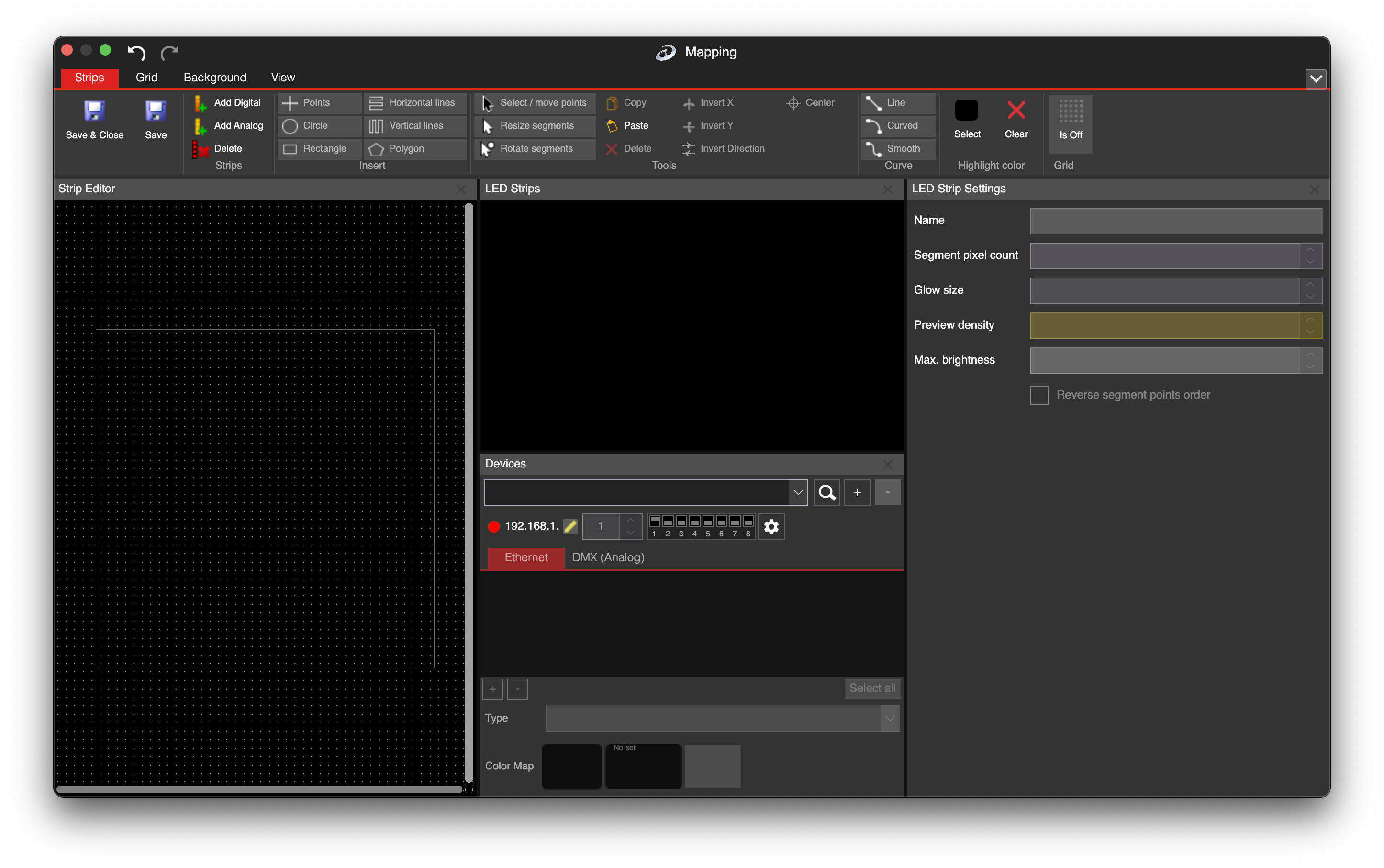
LSS4 main window layout options

More canvas space when you need it

The mapping workspace is where you spend most of your time when building a new installation. The layout controls in the mapping window let you maximize the canvas area for complex layouts, or bring side panels into view when you need to reference segment properties, device settings, or the pixel assignment list. For large pixel grids — 50,000+ pixels across multiple devices — having the full canvas available matters.

The mapping window also supports a dedicated dual-monitor layout, where the canvas extends across both screens. This gives you a much larger working area and lets you keep tool palettes and property panels on the secondary screen without crowding the canvas.

  • Maximize canvas area for complex mapping work
  • Show/hide side panels as needed
  • Dual-monitor layout: canvas on primary, panels on secondary
  • Toggle panel visibility without closing them
  • Layout remembered per project for consistent experience
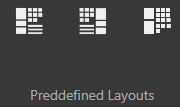
LSS4 mapping window predefined layouts

Common setups

💻

Laptop / On-Site

Compact layout with minimal panels. All essential controls visible without scrolling. Practical for live operation at a venue where screen space is limited.

🖥️

Single Large Monitor

Standard layout with expanded canvas and visible side panels. Comfortable for content creation and show programming at a production desk.

🖥️🖥️

Dual Monitor

Extended layout across two screens. Canvas on the primary, device settings and panel controls on the secondary. Maximum working area for complex installations.

Layout questions

Can I use LSS4 with two monitors?

Yes. LSS4 supports multi-monitor setups. The mapping window in particular has a dual-monitor layout that extends the canvas across both screens, giving you much more working area for complex installations. Tool panels and property controls can be moved to the secondary monitor to keep the canvas uncluttered.

Does LSS4 work on small laptop screens?

Yes. LSS4 includes compact layout options designed for smaller screens. The interface adapts so all essential controls remain accessible without excessive scrolling. This is particularly relevant for live event use, where the show is often run from a laptop at the venue while the main project was created on a larger studio monitor.

Contact & Support

Real people, real answers. Choose the channel that works best for you.

📧

Email

Send us your questions, project details, or feature requests. We reply with thorough answers.

[email protected]
💬

WhatsApp

Quick questions, photos of your installation, or a live voice call — WhatsApp works for all of it.

+421 948 280 393
📹

Zoom Consultation

Book a screen-share session with the team. Walk through your project, get hands-on guidance.

Book a Call
🎧

Talk to Support

Use the contact form to describe your issue or question in detail. We follow up promptly.

Contact Us
✈️

On-Site Support

For large-scale installations — stadiums, studios, architecture — we travel worldwide to assist on-site.

[email protected]
⬇️

Download Free Trial

Try LSS4 with full features. No credit card required. Windows and macOS.

Download Now

An interface that works the way you do

Switch layouts to match your screen, your task, and your working style. Download LSS4 and set it up your way.