Touch Interface
Built for fingers, not cursors
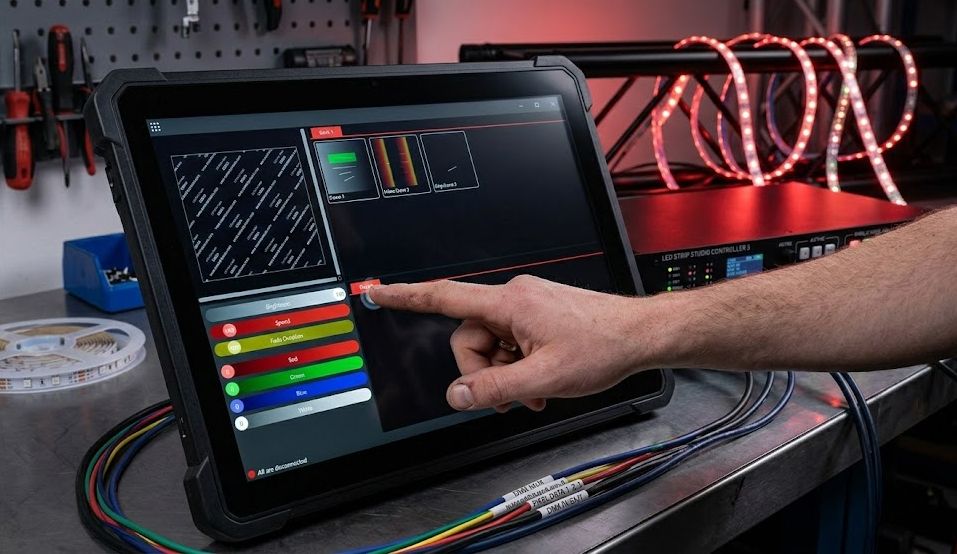
In Touch Mode, LSS4 replaces the standard interface with an oversized grid of scene and show buttons. Each button is large enough to tap confidently without precision — no hovering, no right-clicking, no tiny dropdown menus. Tapping a scene button switches to it immediately. The interface is uncluttered and legible from a distance, making it practical as an operator panel during a live performance.
This is useful beyond tablets. Any Windows touchscreen monitor — a 24-inch panel mounted on a truss, a Microsoft Surface, a POS-style touchscreen at a DJ booth — becomes a fully functional LSS4 control surface in Touch Mode. You can position the touchscreen where the operator is, away from the main programming station.
- Large tap-friendly scene and show buttons
- Instant scene switching on tap — no confirmation step
- Works on any Windows or macOS touchscreen
- Legible from a distance for operator use
- Switch in and out of Touch Mode without losing project state
Live Event Use Cases
Operator panel for shows and installations
At live events, the person controlling the LED system often isn't the person who programmed it. Touch Mode bridges this gap. The programmer sets up the scenes and shows beforehand; the live operator uses Touch Mode to switch between them on cue without needing to understand the full software. Large, labeled buttons make it intuitive even for first-time operators.
For permanent installations with scheduled content — a retail space, a nightclub, a museum exhibit — Touch Mode can also serve as the daily-use interface, letting non-technical staff switch between pre-programmed content without training on the full software.
- Suitable for live event operators unfamiliar with the full software
- Permanent installation control for non-technical staff
- Nightclub and venue DJ booth integration
- Museum and retail installation daily operation
- Festival and stage show live switching