Technology
Can a Pixel LED Show Run From an SD Card Without a PC?
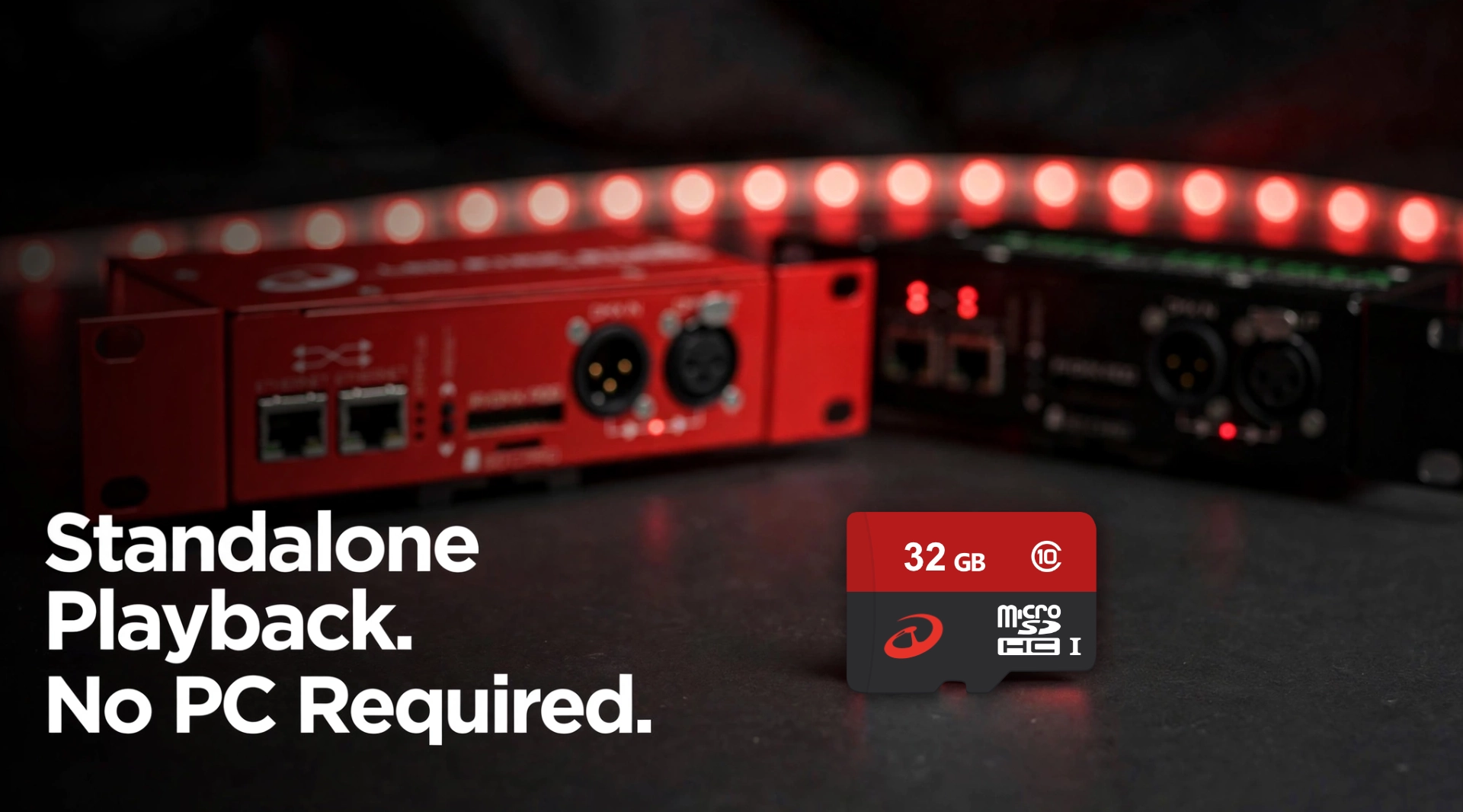
Many clients do not want a computer running next to their LED installation. A PC has to boot, update and stay on, and it is one more thing that can fail late at night in a shop window. Every LED Strip Studio controller has an SD card slot for exactly that reason, so a finished show plays on its own.
This article is for integrators, event technicians and installers planning permanent or semi-permanent installations. It covers what the card stores, how effects get onto it and how one installation is split across several synchronized controllers.
What Is an SD Card LED Controller?
An SD card LED controller stores finished animations on a memory card and plays them back itself, with no live data stream from a computer. The show is created once in software, and the controller only reads it back.
The computer is needed while you design. Once the effects are on the card, the installation runs on its own. Every pixel LED controller we make works this way, so standalone playback is not an option you have to order separately.
A PC on site is a maintenance item. It needs updates, cooling, a stable operating system and somebody who knows how to restart it. In a shop, a hotel lobby or on a facade, nobody there wants that job. Playing from the card removes it: the client only deals with power and a simple way to switch content. The hardware side of that is described on our standalone playback and sync page.
How Many Effects Fit on One SD Card?
One card holds up to 255 effects, and a single show can run up to 24 hours before it repeats. That covers both extremes: a full day of non-repeating content, or a large library of short looks recalled on demand.
| Parameter | Value |
|---|---|
| SD card slot | Every LED Strip Studio controller |
| Effects per card | Up to 255 |
| Length of one show | Up to 24 hours |
| Playlist on Powered SPI LED 2 | Up to 32 files |
| Card format | FAT32, maximum 32 GB |
| File types | LN2 for digital strips, LDM for analog strips over DMX |
| Getting files onto the card | Web configuration over the network, or copied on a computer |
| Several controllers | Master and Slave roles, up to 32 devices on one DMX line |
A 24-hour show is worth using wherever the same people see the installation every day. A lobby wall or a facade feels alive when the animation does not loop every few minutes. The content can drift from morning to night, while short shows cover events and seasonal moments.
How Does LSS4 Create New Effects for the Card?
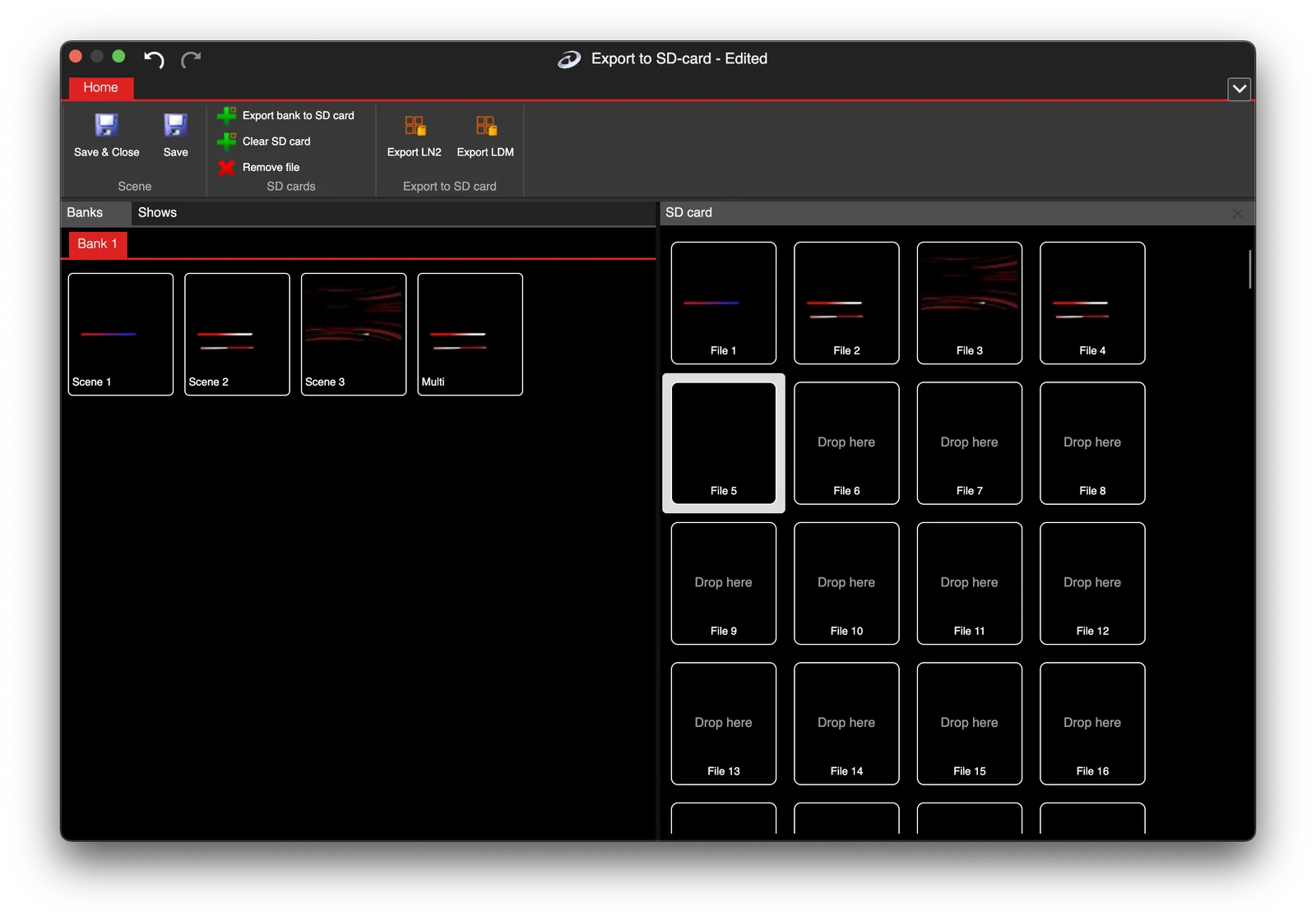
Effects are built on top of the installation’s pixel mapping. The mapping records where each pixel physically sits, so an effect drawn once follows the real shape of a ceiling, a logo or a staircase. Our pixel mapping software does both jobs, and the mapping guide explains how the map itself is made.
Adding content later does not mean redesigning the project. You open the existing mapping, create or adjust the effect and export it to the card. The client gets new content while the wiring and hardware stay exactly as they are. Keep the project archived after handover, because every new effect starts from it.
 Source: LED Strip Studio
The export offers three scopes. A Scene is one selected effect, a Bank is several effects at once, and a Show is a music-synchronized sequence saved as a single file. The file type depends on what the effect drives.
| File type | Drives | Used by |
|---|---|---|
| LN2 | Digital pixel strips | All current controllers, including SPI Matrix, SPI LED Controller and Reactivo |
| LDM | Analog LED strips over DMX | Standalone mode |
| LNT | Legacy files | Discontinued LSS2 and LEC2 only |
Two details decide whether the export lands correctly. Always export for the controller that will play it, which matters most when several devices form one picture. And for SPI Matrix and Reactivo, create a Dummy device in the software first: it is an extra setting on top of the normal Art-Net node and controller setup.
How Do the Effects Get Onto the Card?
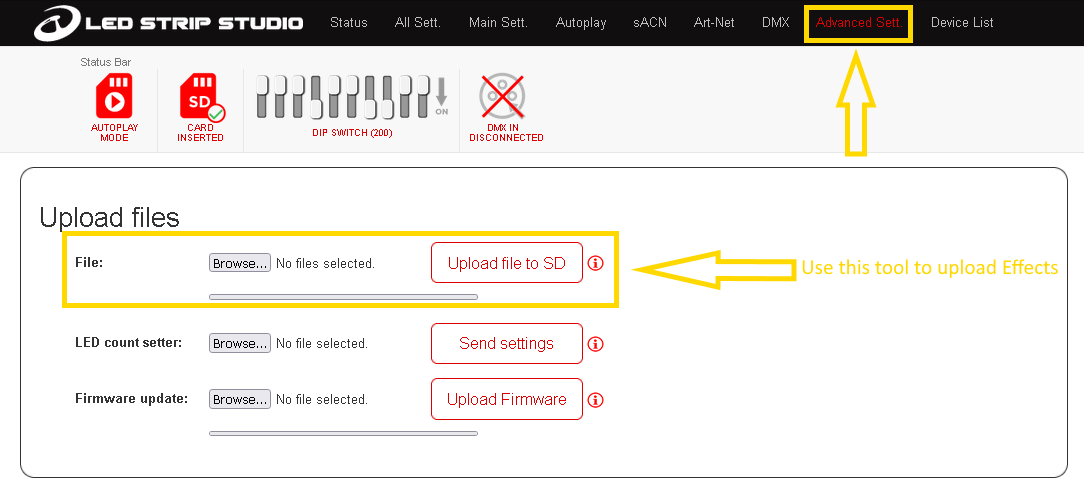
There are two ways: upload over the network from the web configuration, or copy the files to the card on a computer. Both work on every controller except the SPI LED Controller, which connects to neither a PC nor a network, so its card is always filled by hand.
- LEC3 and SPI Matrix: open Advanced settings, scroll to Upload files, drop the files on the Browse button and upload.
- Reactivo: open Settings, find File upload, add the files and upload them to the SD card.
- By hand: copy the files to the root of the card. Anything inside a folder stays invisible to the controller.
 Source: LED Strip Studio
The web configuration reports progress and says so when an upload fails, which usually needs nothing more than a retry or a different card. The Status tab then lists every file with its index and type, and the Autoplay tab plays any of them for a quick check. On Reactivo, the same list sits under Player in the animation library. The full procedure is in our wiki article on exporting effects to the SD card.
Can One Installation Run on Several Synchronized Controllers?
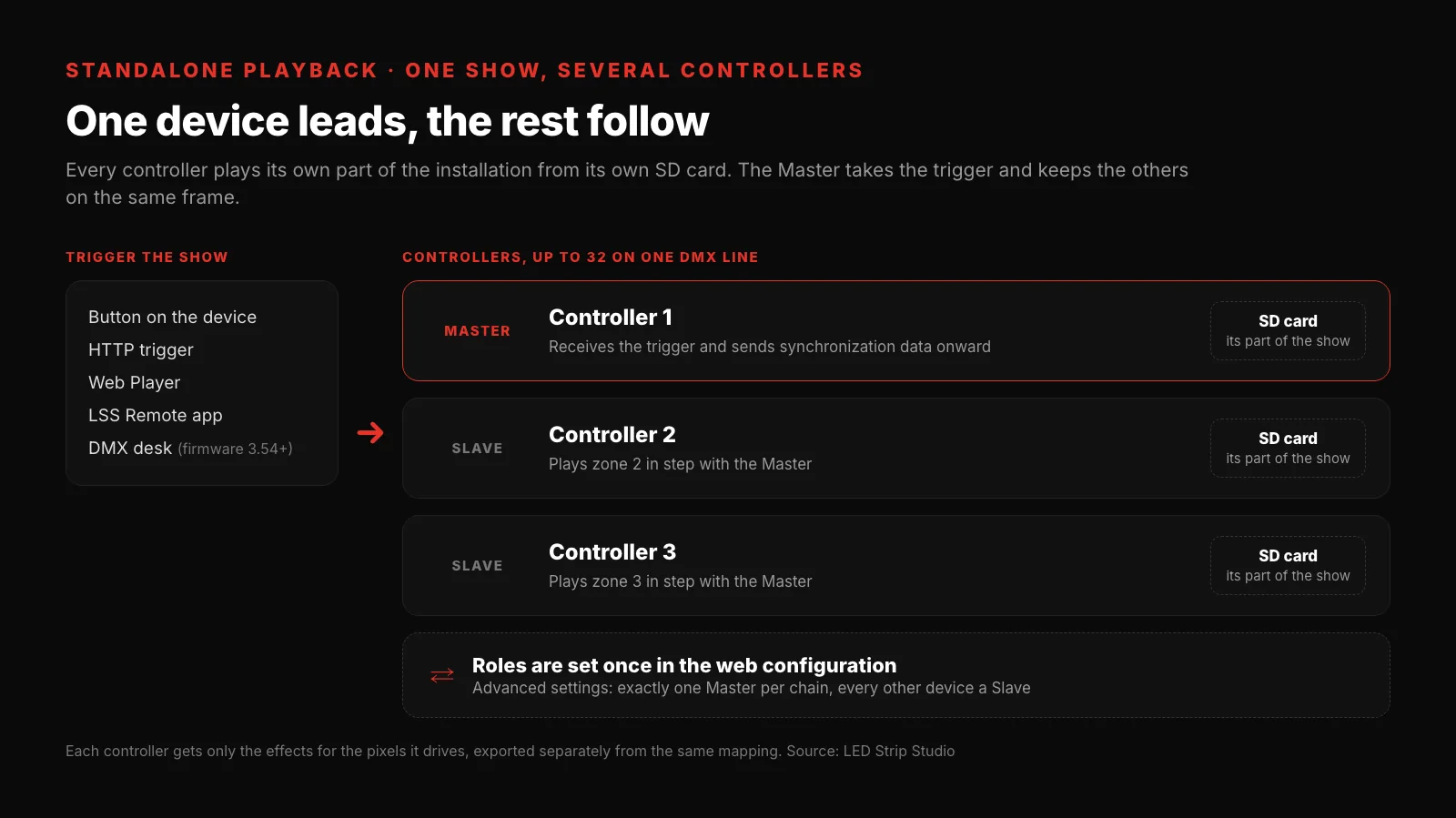
Yes. A large installation splits across several controllers, each with its own card, and they play the show together. One device is set as Master and the others as Slaves in Advanced settings.
Splitting keeps the data line between a controller and its first pixel short. It also lets you put one controller per zone, room or facade section instead of pulling every cable back to a single point.
How Is the Show Started on All Devices?
The Master receives the command and passes synchronization data to the Slaves. The command can come from a button on the device, an HTTP trigger, the Web Player or the LSS Remote app. Since firmware 3.54 it can also come from a lighting desk, as our guide to DMX-triggered LED effects explains, and firmware 3.55 added the explicit Master and Slave roles. The DMX synchronization article covers the wiring and settings.
 Source: LED Strip Studio
What Does This Look Like on a Real Installation?
Take an installation with two zones, a pixel LED ceiling and a lit wall. Each zone gets its own controller, one set as Master and the other as Slave. The cards hold a 24-hour daily show plus a handful of short looks for events. Staff switch between them from the phone app, and no computer is installed anywhere on site.
How Do You Set It Up Step by Step?
- Map the whole installation in LED Strip Studio 4, pixel by pixel.
- Divide the pixels into zones, one zone per controller.
- Create the content: long daily material and short looks for events.
- Export each controller’s part as LN2, or LDM for analog strips, and put it on that controller’s card.
- Set the roles: one Master, every other device a Slave.
- Choose the trigger: button, HTTP, Web Player, DMX or the app.
- Disconnect the design computer and test a full power cycle before handover.
Which Mistakes Break SD Card Playback?
Most problems come from the content or the configuration, not from the card.
- Changing the mapping without re-exporting. The card still plays the old geometry, so effects land on the wrong pixels.
- Updating only one card in a split installation. Every controller needs its own part of the new show.
- Two Masters in one chain. Exactly one device sends synchronization data; the rest follow it.
- A card over 32 GB or not formatted as FAT32. Neither will be read reliably.
- Effects left in folders. The controller only sees files in the root of the card.
- Keeping a PC just to start the show. That brings back the maintenance item you wanted to remove.
- Forgetting the Dummy device. Exports for SPI Matrix and Reactivo need it in the software.
Planning an installation that has to run without a computer? Book a free consultation and we will plan the zones and the card content with you.
Sources & references
- LED Strip Studio — product information: SD card slot in every controller, up to 255 effects per card, up to 24 hours per show, multi-device synchronization
- LED Strip Studio Wiki — How to export effects to SD Card? – BASIC: file types LN2, LDM and LNT, Scene, Bank and Show, Dummy device, upload paths for LEC3, SPI Matrix and Reactivo, manual copy for the SPI LED Controller
- LED Strip Studio Wiki — DMX Synchronization and Introduction to the SPI LED hardware: 255 animations per card, FAT32, maximum 32 GB
- LED Strip Studio — LEC3 firmware notes: DMX trigger of SD card effects from 3.54, Master and Slave roles from 3.55, up to 32 devices on one DMX line
- LED Strip Studio — Powered SPI LED Controller 2 product page: playlist of up to 32 animation files
- LED Strip Studio — LSS Remote product page: supported controllers
Summary
Every LED Strip Studio controller has an SD card slot, so a finished show plays without a computer on site. One card holds up to 255 effects, and a single show can run up to 24 hours before it repeats. Effects are created in LED Strip Studio 4 on the installation's pixel mapping and exported as LN2 files for digital strips or LDM files for analog strips driven over DMX. Upload them over the network from the web configuration, or copy them to the root of a FAT32 card of up to 32 GB. A large installation splits across several controllers, one per zone, with one device set as Master and the rest as Slaves in Advanced settings. The show starts from a button, an HTTP trigger, the Web Player, the LSS Remote app or a DMX cue.