Finally, a Proper LED Mapper That Runs on Mac
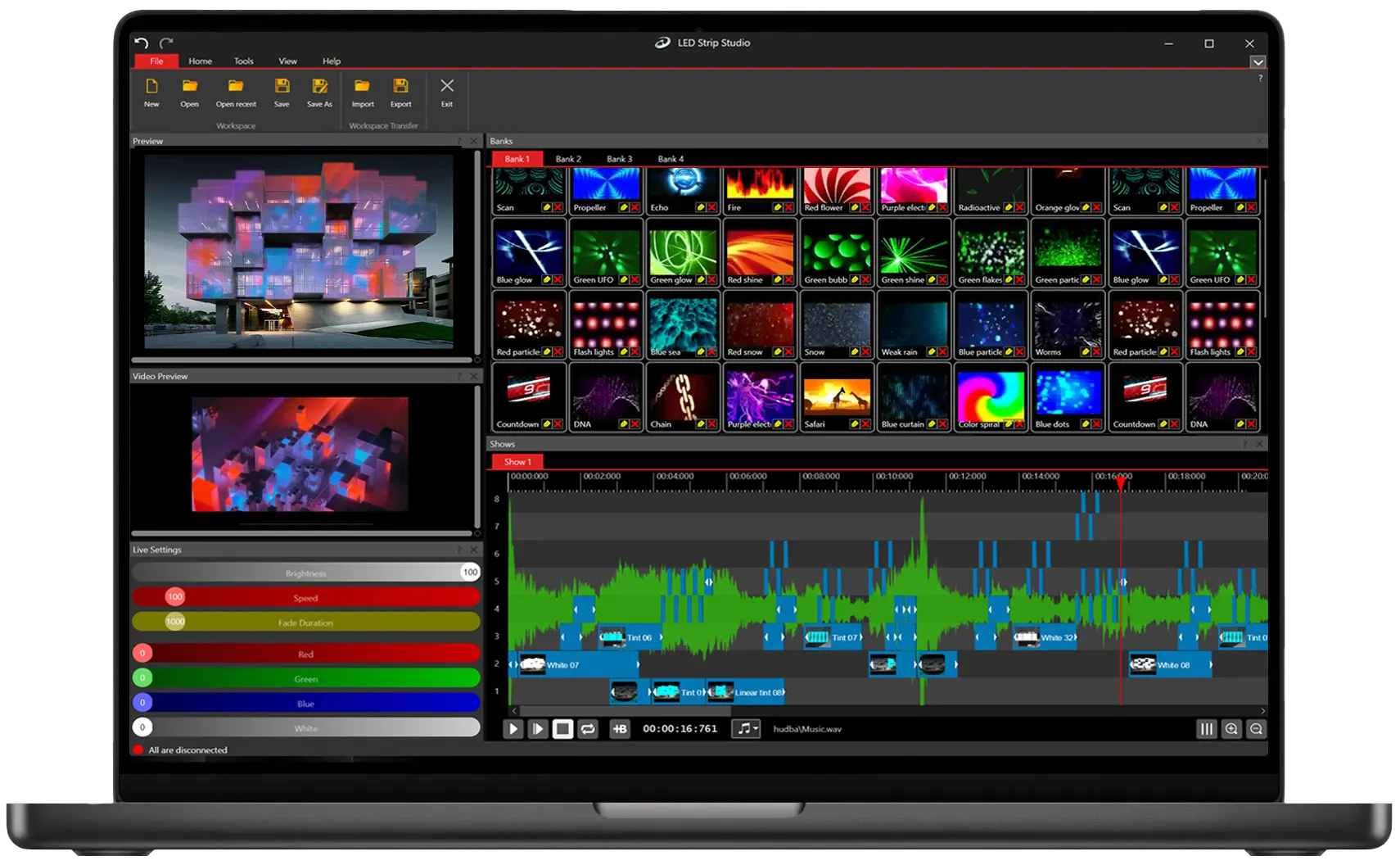
LSS4 is a native macOS application — not a ported Windows app, not a web wrapper. It runs natively on Apple Silicon M1, M2, and later chips, and handles 100,000+ pixel LED installations with the performance and efficiency that native Mac development delivers.
Native Apple Silicon
Built to run natively on M1, M2, and later chips. No Rosetta translation layer, no emulation overhead — full silicon performance for LED pixel calculations.
100k+ Pixel Support
Control installations with 100,000 and more individual LED pixels from your Mac. The 64-bit rendering core handles large-scale calculations efficiently on Mac hardware.
Same Project on Win & Mac
Create your project on a Mac, run it on a Windows machine at the venue, or vice versa. The project file format is identical across platforms — no conversion required.
macOS Network Setup
Ethernet configuration made clear
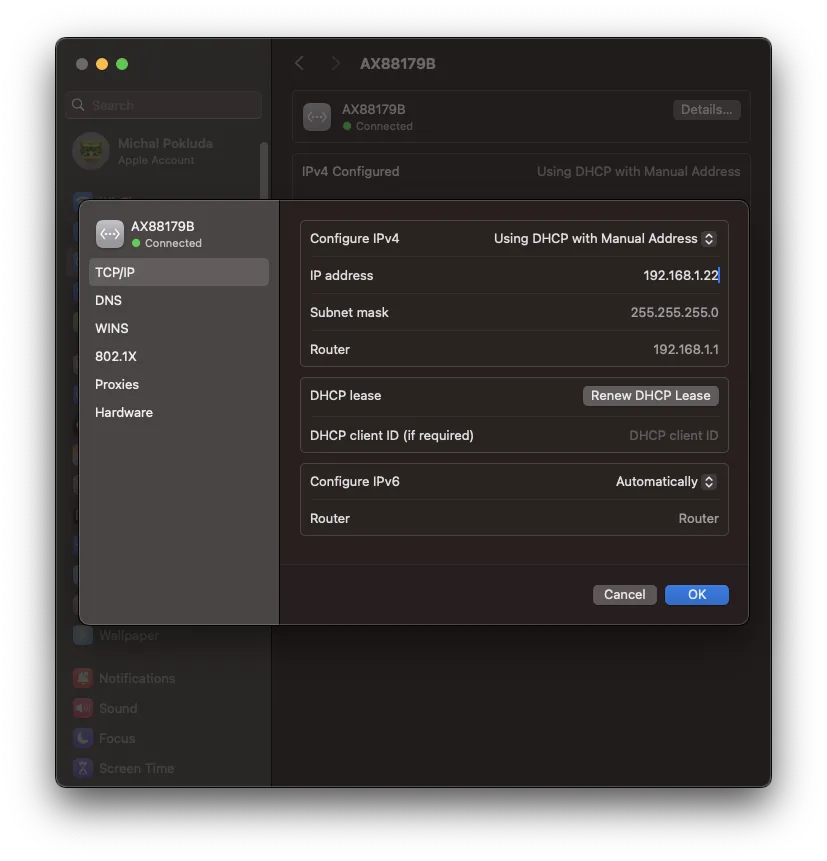
Connecting LED hardware to a Mac involves configuring a dedicated Ethernet interface with a static IP address. LSS4's manual covers this setup step by step for macOS — from System Settings to the exact IP and subnet values needed to communicate with LEC3 and Reactivo 2 devices.
The setup process is well-documented and usually takes under five minutes. Once configured, LSS4 auto-discovers your connected devices and you're ready to start mapping.
- Step-by-step macOS Ethernet configuration guide
- Static IP setup for LEC3 and Reactivo 2 devices
- Auto-discovery of connected hardware after setup
- Works with built-in Ethernet or USB-Ethernet adapters
Screen Grabber on Mac
Privacy settings for screen capture
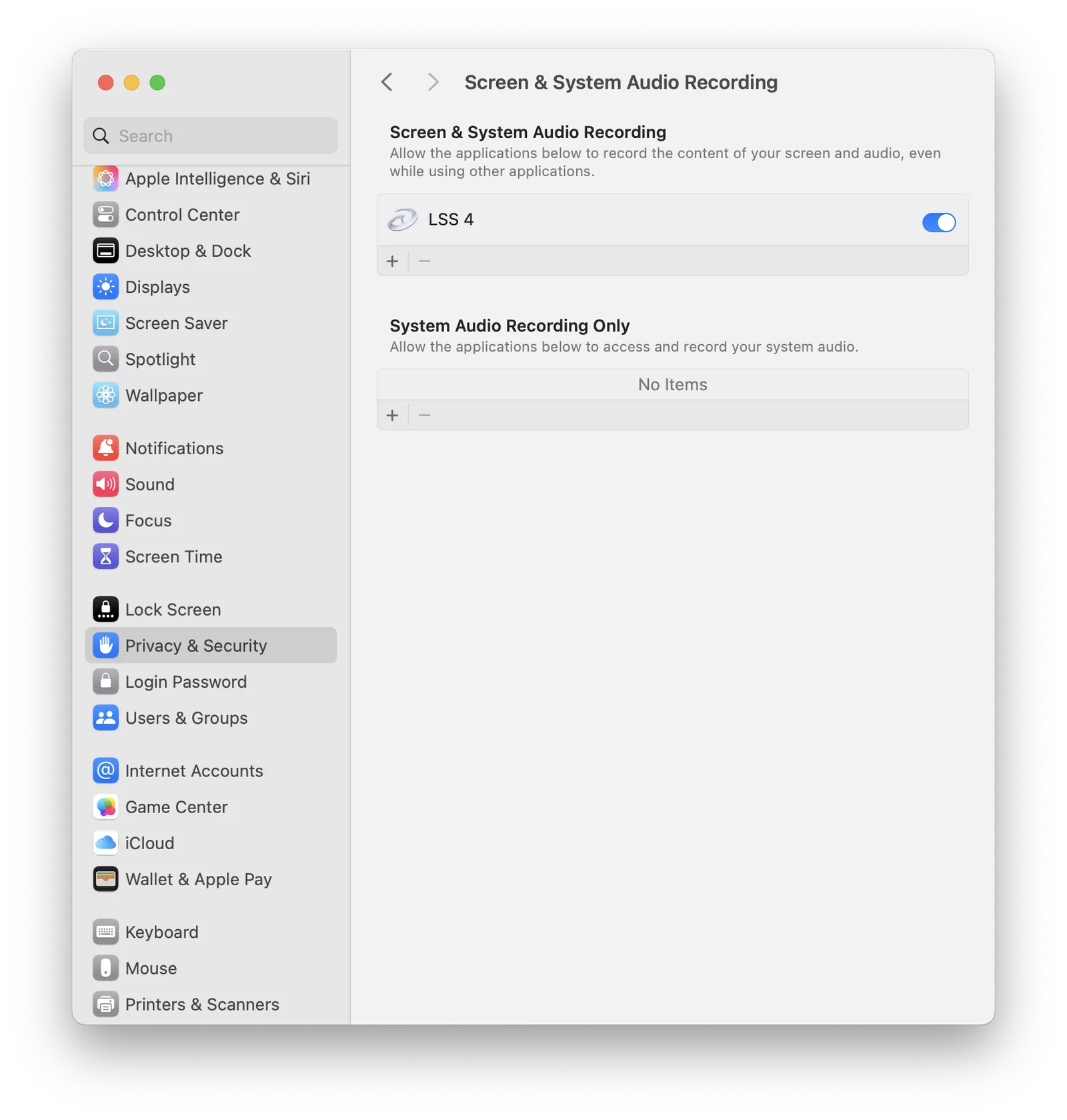
On macOS, the Screen Grabber feature requires permission in Privacy & Security settings. You'll need to check the checkbox next to LSS4 under Screen Recording. Once enabled, you can capture any region of your Mac desktop and display it live on your LED installation — including output from other apps like Resolume, MadMapper, or video players.
- Enable in System Settings → Privacy & Security → Screen Recording
- Capture any region of the Mac desktop
- Works with any application that displays on screen
- Low latency real-time capture for live events
System Requirements for macOS
What you need to run LSS4 on Mac
FAQ
macOS questions
Yes. LSS4 runs natively on Apple Silicon M1, M2, and later chips. This means it takes full advantage of the chip's performance and efficiency without any Rosetta 2 translation overhead. The native M1/M2 performance is particularly noticeable with large-scale installations involving 100,000+ LED pixels.
Yes. LSS4 uses the same project file format on both macOS and Windows. You can create a project on your Mac, transfer it to a Windows machine at the venue, and it works without any conversion. The only requirement is that any video and asset files referenced by the project are also available at the destination — which is easy if you store everything in subfolders of the project folder. More in Portable Workspace Transfer in LSS4.
LSS4 on macOS controls LEC3 and Reactivo 2 hardware over Ethernet, exactly the same as on Windows. You configure a static IP address on your Mac's Ethernet interface (or a USB-Ethernet adapter), connect to the same network as your controllers, and LSS4 discovers them automatically. ArtNet, MIDI, DMX, and keyboard controls are also supported on macOS. More in Supported Hardware.
See LED Strip Studio in Action
Book a free consultation and we'll show you how LED Strip Studio 4 fits your project.
Book a Free Consultation →